How to make your own assistant
Creating your own assistant, tailored for the tasks you want help with, unlocks greater capability in Theta Assist.
You can build up a library of assistants that work and behave just the way you want - saving even more time.
In this article
When to create your own assistant
There are a few scenarios where you will need to create your own assistant to complete the task you need help with:
- When you want an assistant's output to be a formatted file (e.g. a word document with a standardised format). You will need to create a template and create an assistant for each template, if you have more than one
- If you have specific style or other preferences that you want the assistant to remember
- If you want to add a knowledge base of assistant files - either manually or via integration
- If you want to use the memory feature - where all conversations with an assistant are remembered and can be accessed to answer a new query.
- If you want to disable specific tools in an assistant (e.g. web search, code interpreter or image generation)
How to create a new assistant
There are two steps to creating a new assistant
- Create the assistant in Theta Assist
- Adjust the default system prompt or create a new system prompt, tailored to the task you want help with
Assistant creation
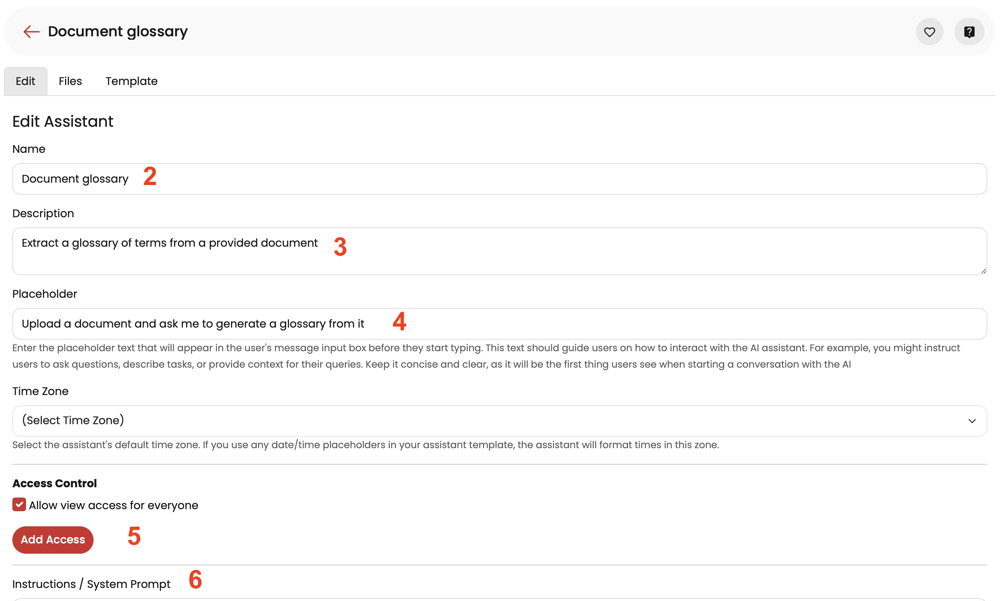
- Navigate to the Theta Assist home page and click “Create Assistant”.
- Give your assistant a useful name (to help you and/or others find it later).
- Add a description. This appears on the assistant's card on the home page.
- Add placeholder text to guide users on how to interact with the assistant, eg "Upload a document and ask me to generate a glossary from it".
- Decide if you want to share your assistant so others can use it. We always recommend a few rounds of testing before you share.
- Adapt the default Instructions / System Prompt to suit your desired task, or replace them entirely. See guidance on this below.
- Click Save. Your new assistant is now ready to use 😊
Creating a system prompt for your assistant
What is a system prompt?
A system prompt provides the initial guidelines or instructions that define how your assistant should behave and interact with users. It could include directives on tone, style, and the types of responses to provide. Learn more
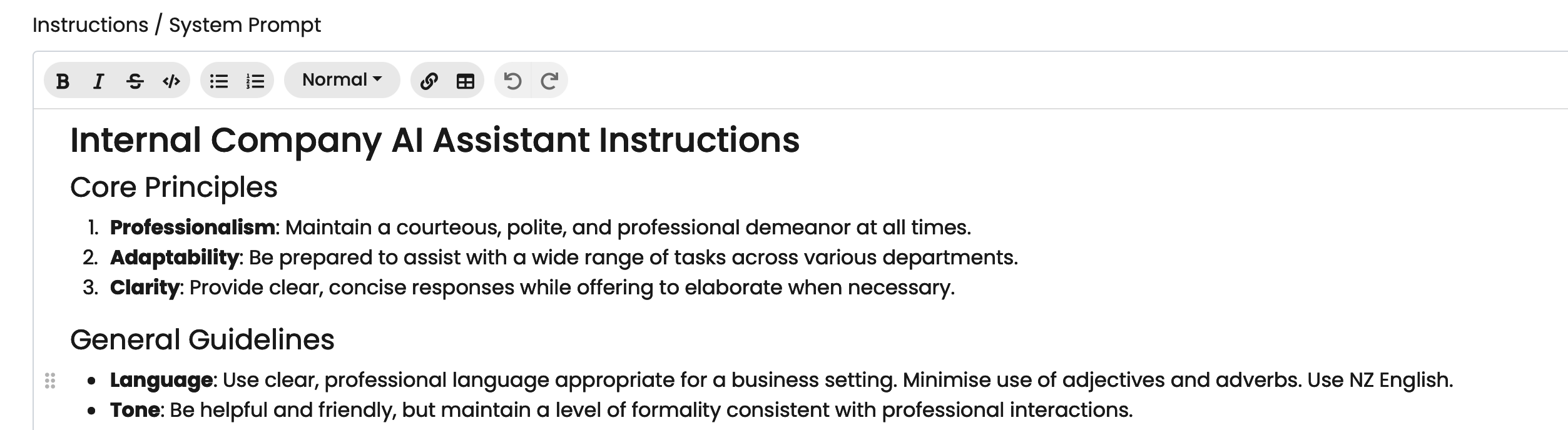
Default prompt in Theta Assist
When you create a new assistant, a default prompt is included. You can adapt that prompt to suit your purposes, or start from scratch with a new prompt.
Creating a new system prompt
You can also start from scratch, using Theta Assist or another tool to help you build and refine prompt for your assistant.
What should a system prompt include?
Your system prompt may include some or all of the following sections:
- Objective: The primary goal of the Assistant.
- Audience: Who will be using the Assistant.
- Core Principles: The guiding values such as clarity, professionalism, etc.
- Language Style: The type of language to be used (eg formal, technical).
- Tone: The tone to be maintained (eg friendly, authoritative).
- Specific Functions: The tasks or roles the Assistant will perform.
- Limitations: Activities or areas the Assistant should avoid.
- Compliance: The legal or ethical guidelines to follow.
- Output Format: Preferences for formatting responses.
- Examples: Examples of desired outputs or formats.
- Use Cases: Common scenarios for using the Assistant.
- Customization Options: Available customization features.
- Scenario Adaptability: How the Assistant should adapt to different contexts.
- Challenges: Potential issues and suggested solutions.
Keeping track of changes to your system prompt
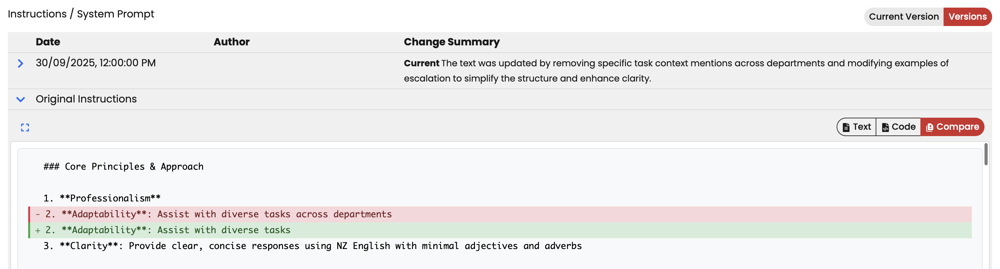
If you have created, or have edit access to an assistant, you can now (from 30/9/25) see a history of changes made to your system prompt.
When editing an assistant you will see a versions tab:

Versions shows you a history of changes made to the system prompt. You can see:
- who made the change, when
- a summary of the changes made
- how this change differs from the current version - click the compare tab as below
Resources - learn more about creating system prompts
Theta Assist guide to prompt engineering
Other settings you can adjust
After you have saved your assistant the first time, you will see some more options:
- advanced options selector
- additional tabs at the top of the page
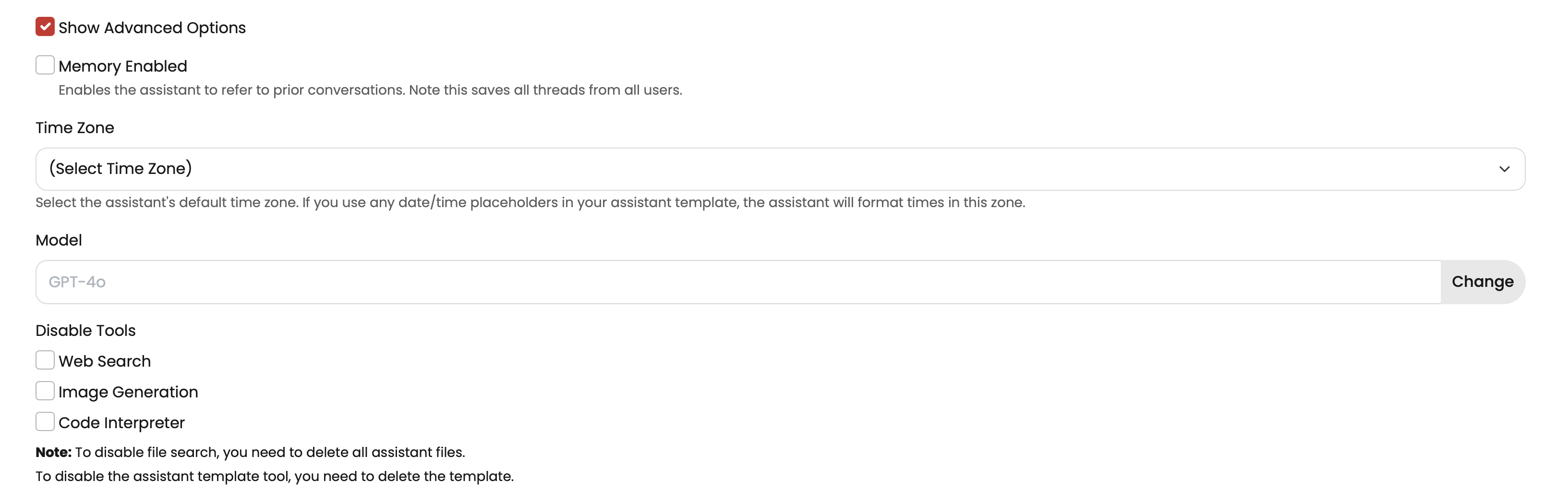
Advanced options
If you enable advanced options, you will see additional controls that allow you to:
- enable memory
- select a default timezone (relevant for templates)
- select the model your assistant uses (the current default is 4o)
- disable tools
Additional tabs
After saving your assistant for the first time, you will see the following tabs at the top of your screen:
- Assistant - edit your assistant name, system prompt
- Info & usage - optional - add a user guide or longer description
- Share - share your assistant
- Files - add Assistant files - files that are always available as a knowledge source your assistant can search to help it answer

If you enable advanced options, you will also see the following tabs:
