Model settings
Theta Assist supports now models from multiple providers. Your organisation may restrict some models. If a model is restricted, it may not appear in your model list.
For the latest info on current Open AI models, see Open AI documentation.
Quick links...
What is a model?
Models are the AI systems your assistant uses to generate responses. Different models have different strengths, such as speed, reasoning ability, and support for advanced features.
Change the model for an assistant
Use these steps if you own the assistant or have permission to edit it.
Before you start
- You must have edit access to the assistant
- Your assistant must have advanced options enabled
- The model you want must be available to you.
Pricing implications
- Changing the model used can affect price and usage.
- If you have an AI-included plan, you may reach your usage allowance cap more quickly or more slowly.
- If you have a BYO AI plan, different models may have different direct costs.
How to change the model an assistant uses
Follow these steps to change the model your assistant uses:
- Select Edit assistant
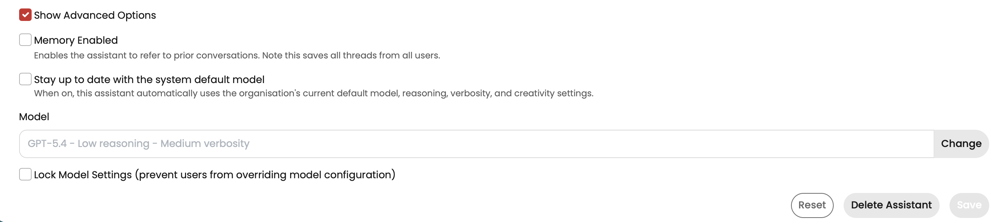
- At the bottom of the edit screen, select Show advanced options
- Select Change next to the current model to select another model
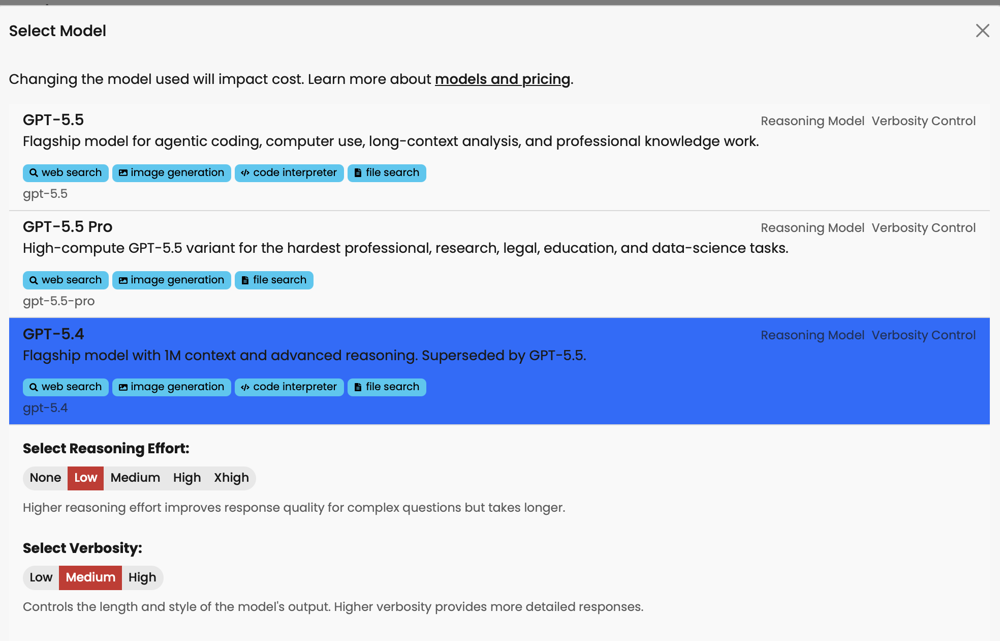
- Choose a model from the list of models available to you. If you do not see the model you expected, your organisation may have restricted it.
- If shown, review any extra settings such as reasoning effort or verbosity.
- Save your changes.
Follow the system default model
- You can opt to stay up to date with the system default model by selecting the checkbox above the model selector.
- When enabled, the assistant automatically follows your organisation’s default model instead of keeping a fixed model selection.
- This helps when your organisation promotes a newer or more capable default model. Assistants with this setting turned on will move with that change automatically.
Lock model settings
Assistant owners can also lock model settings. If locked, users will not see the model indicator in their message window when using the assistant, and will not be able to change the model or model settings.
Change the model for a thread
If the message window in your assistant includes a model indicator, you can change the model used for that thread.

To do this, click the model indicator. You will see the model settings dialog, and be able to select a different model:
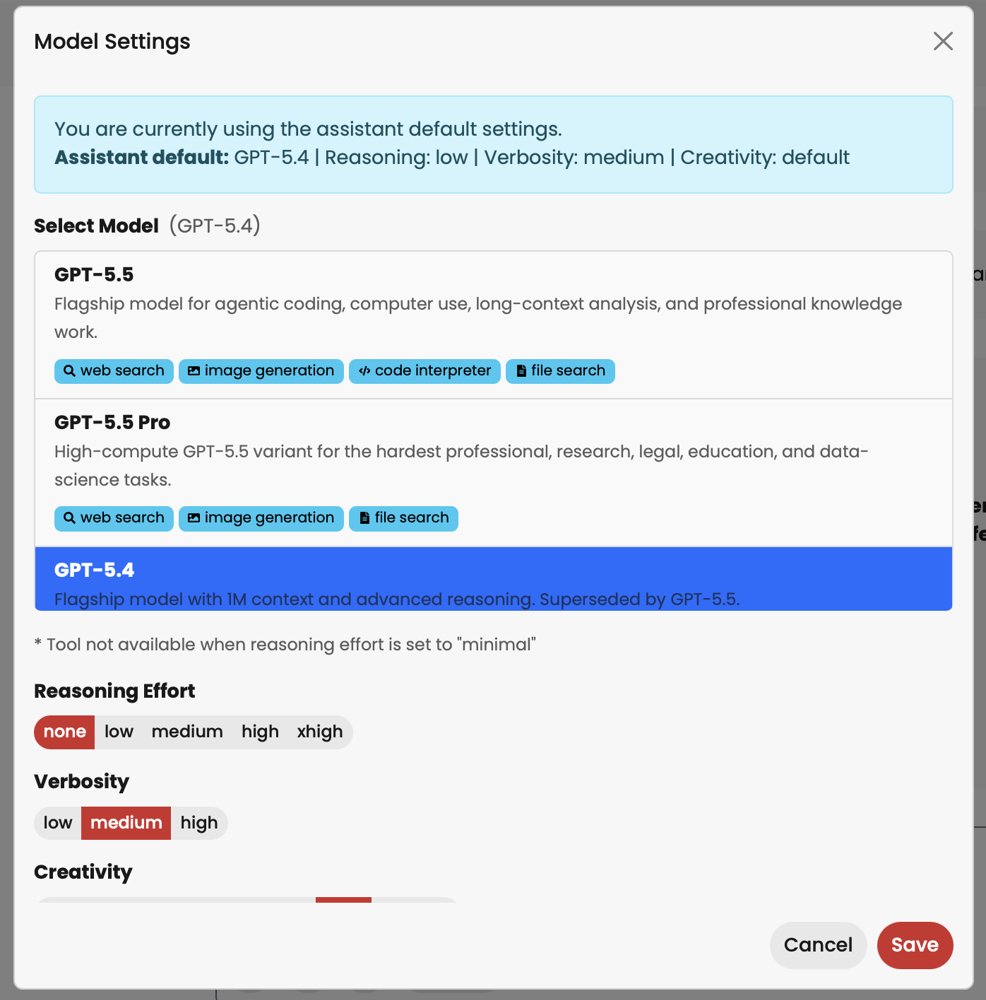
If a model is restricted and you are not allowed to use it, it will not appear in the list.
How to select a model for your assistant - some quick tips
- Use the default model unless you have a clear reason to change it.
- Choose higher-capability models for more complex work.
- Choose smaller or faster models for lighter or cost-sensitive tasks.
- If a model includes reasoning or verbosity settings, start with the defaults unless you need different behaviour.
Troubleshooting
I can’t change the model field
If Stay up to date with the system default model is turned on, the model field is read-only by design.
To choose a specific model manually:
- turn the setting off
- save the assistant
- select the model you want
My assistant changed models unexpectedly
Check whether Stay up to date with the system default model is turned on. If it is, the assistant follows the organisation’s default model automatically.
Reasoning or verbosity changed after a model update
This usually means the previous value was not supported by the new default model. Theta Assist keeps compatible values where possible and falls back to defaults when needed.
I can’t see a model someone else can see
- Your organisation may restrict some models.
- If you think you should have access, contact your administrator.
I can’t switch this thread to a specific model
Possible reasons include:
- model settings are locked for that assistant
- the model is restricted and not available to you
- the model is not available for your account or plan