Models | Admin guide
This guide explains how system administrators can manage model availability in Theta Assist. Learn how to control which models users can see and use, including restricting specific models to approved users with Access Profiles, specify a system default model, and migrate assistants in bulk.
Quick links
What admins can control
From the models screen in Theta Assist, system administrators can manage which models are available in the system and who can use them.
You can use model settings to:
- review the models available to your organisation
- restrict a model to a specific Access Profile
- leave a model unrestricted so it is available to all eligible users
- control which models can be used as part of assistant configuration and thread-level model changes
This is especially useful for higher-cost or specialist models.
Manage models
- Go to Admin > Configuration > Models.
- Open the model you want to review.
- Check the model settings, including whether an Access Profile is assigned.
- Save any changes.
If a model has no Access Profile assigned, it is available to all eligible users.
Restrict a model with an Access Profile
Use an Access Profile when you want only a specific group of users to see and use a model.
- Go to Admin > Configuration > Models.
- Open the model you want to restrict.
- Select an Access Profile.
- Save your changes.
Only members of that Access Profile, plus system administrators, will be able to see and use the model.
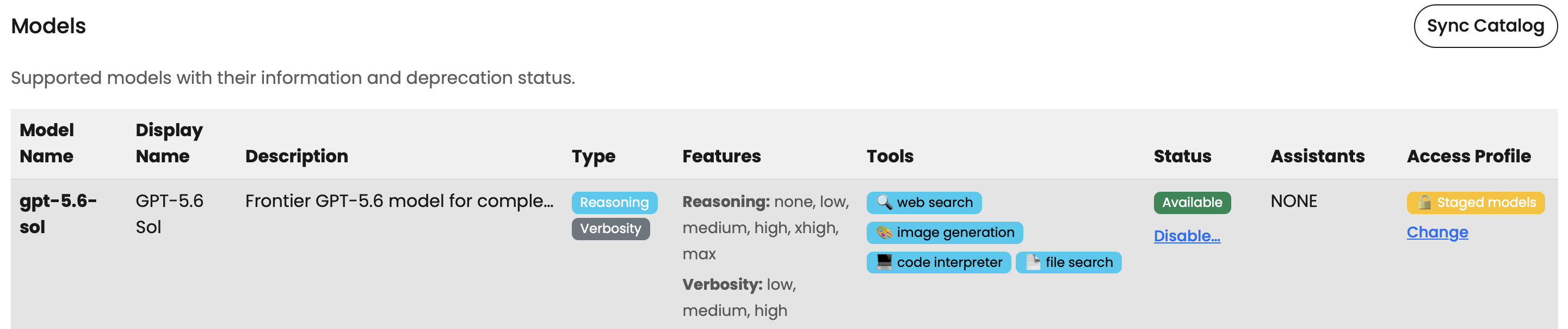
New models (from GPT-5.6) are rolled out with a default "Staged models" access profile. This allows system admins to review new models and manage their wider roll-out when they are ready.
To create or manage profiles, see Access Profiles | Admin Guide.
How model restrictions work
When a model is restricted by an Access Profile:
- only members of that profile and system administrators can see it in model lists
- non-members cannot assign it to an assistant
- non-members cannot switch a thread to that model
- background features that choose models automatically will skip that model for users who are not allowed to use it
If a user is not allowed to use a restricted model, the model is usually hidden rather than shown with an error.
Membership and caching
Access Profile membership is cached for a short time.
After adding or removing someone from a profile:
- wait up to 5 minutes
- ask the user to refresh the page and try again
System default model
The system default model is the model used by new assistants, and those that have "stay up to date with the system default model" enabled.
To set the system default:
- Go to Admin > Configuration > Defaults.
- Select your preferred model.
- Select Save changes.
If you change the system default, all assistants which have "stay up to date with the system default model" enabled automatically get updated with that model.
A restricted model cannot be set as the system default model. If you want to use a model as the default for the organisation, make sure it is not restricted by an Access Profile.
If you are planning to move assistants from one model to another, use Migrate Models to review affected assistants and complete the change.
Migrate assistants to a newer model
Use Migrate Models to see which assistants are using each model and move them to a newer model.
This is useful when you want to:
- standardise assistants on fewer models
- move off an older model
- shift assistants to a lower-cost or higher-capability model
Open Migrate Models
- Go to Admin > Configuration > Migrate Models.
- Review the list of models.
The table shows:
| Column | Description |
|---|---|
| Model Name | The display name shown in Theta Assist |
| Deployment Name | The underlying deployment name |
| Assistants | How many assistants are using that model |
| Actions | The Migrate action |
Review model usage
Use the Assistants column to see how many assistants are using each model.
Select the assistant count to review the assistants affected before making a change.
Migrate a model
- Find the model you want to migrate assistants from.
- Check the assistant count.
- Select Migrate.
- Choose the target model.
- Review the change.
- Confirm the migration.
Before you migrate
Check that:
- the target model is suitable for the assistants being migrated
- the target model supports the features those assistants need
- the right users will be able to access the target model
If the target model is restricted by an Access Profile, review that restriction before migrating.
How Access Profiles affect migration
If the target model is restricted:
- only authorised users can see and use it
- non-members cannot switch a thread to that model
- migrated assistants may be affected if the target model is not available to the relevant users
Common scenarios
Restrict premium models
Use this when you want only approved users to access higher-cost models.
- Create an Access Profile such as Premium model users.
- Add the approved users or groups.
- Assign that profile to the premium model.
- Save your changes.
Only those users, plus system administrators, will be able to use that model.
Leave standard models open
If you want a model to be available to everyone, leave the Access Profile field blank.
This is usually the best option for lower-cost or default models.
Use one profile across features
You can use the same Access Profile across models, tools, connectors, and MCP servers.
This is useful when one team should have access to a set of related capabilities.
System processing models
Theta Assist uses models for some background tasks, not just for user-facing assistant replies.
This includes:
- Thread naming and change summaries
- Follow-on suggestions
- Batch processing
- Background runs
- ROI estimation
To review and configure models used for these tasks, go to Configuration > Settings > Auxiliary AI Models
Administrators can choose whether Theta Assist should use:
- an automatic selection
- the first capable mini model
- the first capable full model
- a specific model
This gives you more control over cost, performance, and capability for background processing.
How model switching works in threads
Users may be able to switch models during a thread, but this depends on what has already happened in that thread.
For example, if a thread has already used a feature that a model does not support, Theta Assist may prevent switching to that model.
This helps avoid broken or inconsistent behaviour.
Troubleshooting
A user cannot see a model they should be able to use
Check the following:
- the correct Access Profile is assigned to the model
- the user, or one of their groups, is a member of that profile
- the user has refreshed the page
- enough time has passed for cached access to refresh
A user can see a model they should not be able to use
Check whether:
- the wrong Access Profile is assigned to the model
- the user is a member of the profile through a group
- the user is a system administrator
A user cannot switch a thread to a model
Check whether:
- the model is restricted by an Access Profile
- the user is allowed to use that model
- the assistant owner has locked model settings
- the thread has already used a feature that the newly selected model does not support
Changing or deleting a profile changed model availability
If an Access Profile is removed or deleted, any model using that profile becomes unrestricted unless another profile is assigned.
If this was not intended, assign the correct profile again.
A migrated assistant cannot use the target model
Check whether the target model is restricted by an Access Profile.
I’m not sure which models to review first
Start with models that have:
- the highest assistant counts
- the highest cost impact
- the oldest or least-used deployments
Related articles
- Access Profiles | Admin guide
- Model settings
- AI Providers
- Feature limitations on BYO API key and Azure plans