Access profiles | Admin guide
Access Profiles let system administrators control who can access specific features in Theta Assist. You can use them to restrict models, built-in tools, connectors, and MCP servers to specific users or groups.
This helps you manage access to higher-cost or specialised capabilities without creating new user roles.
Quick links
- What access profiles are
- What access profiles control
- Manage access profiles
- Apply an access profile
- How access is evaluated
- Common scenarios
- Troubleshooting
- A user cannot see a model they should be able to use
- A user can see a model they should not be able to use
- A user cannot add a tool, connector, or MCP server they should have access to
- A user can use a tool but is not in the tool’s Access Profile
- A user cannot switch a thread to a specific model
- Deleting a profile unexpectedly opened access
What access profiles are
An Access Profile is a named list of users and/or groups.
You assign an Access Profile to a feature to control who can access it. Access Profiles do not grant system permissions on their own. Their meaning comes from where you apply them.
For example, you might:
- restrict a premium model to a small group of approved users
- allow only the finance team to add a Business Central MCP server
- limit a built-in tool to users who have completed training
What access profiles control
Access Profiles can be applied to:
- Models
- Built-in tools
- Connectors
- MCP servers
Important: models behave differently from tools and servers
Access Profiles do not behave the same way for every feature type.
| Feature type | What the Access Profile controls |
|---|---|
| Models | Who can see, select, and use the model |
| Built-in tools | Who can configure the tool on an assistant |
| Connectors | Who can configure the connector on an assistant |
| MCP servers | Who can configure the MCP server on an assistant |
Key distinction
For tools, connectors, and MCP servers, Access Profiles gate configuration. Once an authorised user has added one of these to an assistant, other users with access to that assistant may still be able to use it.
For models, Access Profiles gate both visibility and use. If a user is not allowed to use a restricted model:
- they will not see it in model pickers
- they cannot assign it to an assistant
- they cannot switch a thread to it
- model-based background features will not select it on their behalf
Manage access profiles
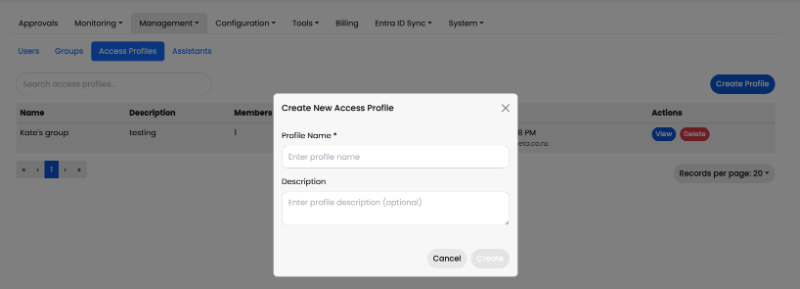
Access Profiles are managed under Admin > Management > Access Profiles.
Create a profile
- Go to Admin > Management > Access Profiles.
- Select Create profile.
- Enter a unique Name.
- Optionally enter a Description.
- Select Create.
Add members
Open the profile to add members. Members can be:
| Member type | Description |
|---|---|
| User | A specific individual user |
| Group | All current and future members of a Theta Assist group, including Azure AD-synced groups |
| Everyone | All authenticated users |
To add a member:
- Open the profile.
- Select Add member.
- Choose the member type.
- Select the user or group.
- Confirm the change.
💡 Tip: Using Group membership (especially Azure AD-synced groups) is preferred over adding users individually — group membership changes automatically propagate without needing to update the Access Profile.
Remove members
- Open the profile.
- Find the user or group in the member list.
- Remove the member.
Changes usually apply quickly, but cached access may take a few minutes to refresh.
Delete a profile
Deleting an Access Profile does not delete the features using it. It removes the restriction from those features.
If a deleted profile was assigned to a model, tool, connector, or MCP server, that item becomes unrestricted unless another restriction is applied.
Apply an access profile
You can apply an Access Profile in several places.
Apply to a model
Use this when you want to restrict who can see and use a model.
- Go to Admin > Configuration > Models.
- Open the model you want to manage.
- Select an Access Profile.
- Save your changes.
If no Access Profile is assigned, the model is available to all eligible users.
We now roll out new models (from GPT-5.6) with a default "Staged models" access profile. This allows system admins to review new models and manage their wider roll-out when they are ready.

Note: System admins can still see restricted models.
Apply to a built-in tool
- Go to Admin > Built-in Tools.
- Open the tool settings.
- Select an Access Profile.
- Save your changes.
Tools with no Access Profile assigned are visible to all users when configuring their assistant.
Apply to a connector
- Go to Admin > Connectors.
- Open the connector settings.
- Select an Access Profile
- Save your changes.
Apply to an MCP server
- Go to Admin > MCP Servers.
- Open the server configuration.
- Select an Access Profile.
- Save your changes.
This applies to both globally-scoped and assistant-scoped MCP servers.
How access is evaluated
When a user opens a configuration screen, Theta Assist checks their Access Profile membership, including both direct membership and group membership.
For models
If a model:
- has no Access Profile, it is available to all eligible users
- has an Access Profile, it is available only to members of that profile and system admins
If a user is not allowed to use a restricted model:
- the model is hidden from model lists
- assigning it to an assistant is blocked
- switching a thread to it is blocked
- background features that choose models automatically will skip it and use another valid option if available
Restricted models also cannot be set as the system default model.
For tools, connectors, and MCP servers
If an item:
- has no Access Profile, it is available to all eligible users
- has an Access Profile, only members of that profile can add or configure it
Items a user cannot configure are usually hidden.
Caching
Access Profile membership is cached for a short time.
After adding or removing someone from a profile:
- wait up to 5 minutes
- ask the user to refresh the page and try again
Common scenarios
Restrict premium models to approved users
Use an Access Profile when you want only a nominated group to use a higher-cost model.
Example:
- Create an Access Profile such as Premium model users.
- Add the approved users or groups.
- Open Admin > Configuration > Models.
- Assign that profile to the premium model.
- Save.
Only those users, plus system admins, will see and be able to use that model.
Restrict an MCP server to a specific team
- Create an access profile, for example Sales Team.
- Add the relevant Azure AD group or individual users to the profile.
- Open the MCP server settings.
- Assign the Sales Team profile.
Only members of that profile will be able to add the server to their assistants.
Make a tool available to everyone
Leave the Access Profile field blank, or remove the profile that is currently assigned.
The tool will be visible to all users and available for them to add to their assistants.
Use one profile across multiple tools
You can use the same Access Profile across:
- models
- tools
- connectors
- MCP servers
This is useful when one team should have access to a set of related capabilities.
Troubleshooting
A user cannot see a model they should be able to use
Check the following:
- the model has the correct Access Profile assigned
- the user, or one of their groups, is in that profile
- the user has refreshed the page
- enough time has passed for cached access to refresh
If the user still cannot see it, ask a system admin to confirm the model restriction.
A user can see a model they should not be able to use
Check whether:
- the wrong Access Profile is assigned to the model
- the user is a member of the profile through a group
- the user is a system admin
A user cannot add a tool, connector, or MCP server they should have access to
Check the following:
- the item has the correct Access Profile assigned
- the user, or one of their groups, is in that profile
- the item is enabled
- cached access has refreshed
A user can use a tool but is not in the tool’s Access Profile
This may be expected.
For tools, connectors, and MCP servers, Access Profiles control who can configure the item. They do not necessarily stop other users from using an assistant that already has the item configured.
A user cannot switch a thread to a specific model
The model may be restricted by an Access Profile.
Ask a SysAdmin to check:
- whether the model is restricted
- whether the user is a member of the assigned profile
Deleting a profile unexpectedly opened access
Deleting an Access Profile removes the restriction from any models, tools, connectors, or MCP servers that used it.
If this was not intended:
- recreate the profile, or create a replacement
- reassign it to the affected items