AI Providers
Use AI Providers in Theta Assist to connect your own AI provider accounts and make additional models available in your workspace.
This feature is for system administrators who want more control over which providers and models are available, including bring-your-own-provider set-up, provider-specific models, and models used for background system processing.
Quick links
Bring-your-own provider
AI Providers let you connect external AI services to Theta Assist using your own account and API key.
This means you can:
- connect supported providers such as Google or Anthropic
- add models from those providers
- test whether a model works in Theta Assist
- choose which models are available for assistants and threads
- choose which models Theta Assist uses for some background system tasks
This is a bring your own provider feature. Theta Assist does not create the provider account for you.
Before you start
Before you add an AI Provider, make sure you have:
- system administrator access in Theta Assist
- an account with the provider you want to connect
- the required API key or connection details for that provider
- enough information to configure the model correctly, such as supported capabilities and context window if needed
Some provider APIs do not return all the information Theta Assist needs. You may need to check the provider’s own documentation before enabling a model.
Open AI Providers
- Go to Admin > Configuration > AI Providers.
You will only see this area if AI Providers are enabled for your environment.
Add an AI provider
- Go to Admin > Configuration > AI Providers
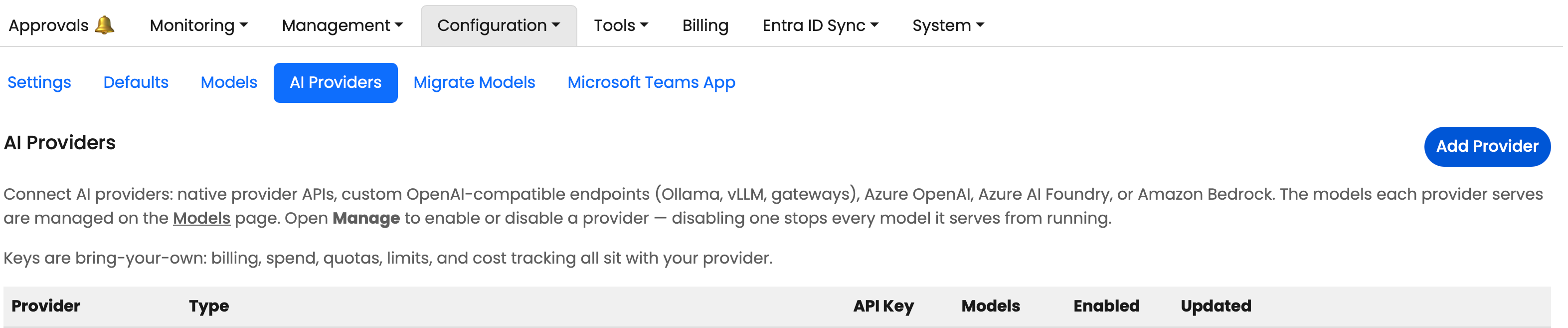
- Select Add provider.
- Choose the connection type.
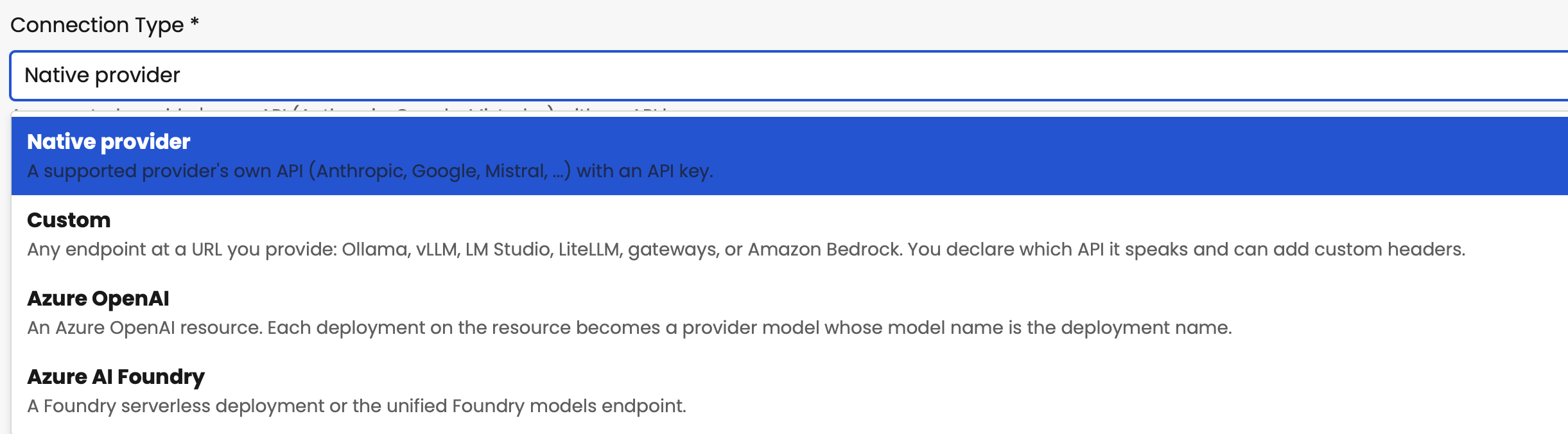
- Enter the required connection details, such as the API key.
- Select Save changes.
Depending on the provider type, you may be connecting directly to the provider’s own API or to a custom API endpoint.
In general:
- Native providers connect to a supported provider’s own API
- Custom providers let you enter your own compatible endpoint details
Add a provider model
After you connect a provider, you can add one or more models from that provider.
- Click Manage to open the provider you want to use.
- Select the option to add a model.
- Add manually if you know the model you want to use, or use the Discover tab to find models Choose a model from the available list, or enter the exact model details if required.
- Save the model.
When a model is first added, it will appear in a disabled state ready for review.
What to check before adding a model
- Non-chat models can appear on the list — image, embedding, audio, moderation and reranking — as do models that don't support the chat-completions API. Use Test to confirm what a model actually serves.
- Check the provider's documentation for the exact id: some need a specific versioned or inference-profile id.
- Whatever the listing reports is stored for you — display name, description, context window, and capability flags where it declares them. Anything unreported stays off, to set on the Models page.
- A model can't be enabled until its context window is set.
- If you test a model and exactly one API shape works, that shape is saved on it automatically.
Configure a provider model
Before a provider model is ready to use, review its settings carefully.
Check whether the model supports the features you need, such as:
- chat
- tool calling
- structured outputs
- image input
- reasoning
- context window size
Some of this information may be filled automatically. In other cases, you may need to enter or confirm it yourself.
If Theta Assist cannot confirm a capability automatically, do not assume it is supported. Check the provider documentation first.
Test and enable a model
Use the test option to confirm the model is usable before you enable it for wider use.
- Open the provider model.
- Review the configuration.
- Select Test.
- Check the result.
- If the test succeeds, enable the model.
- Select Save changes.
Testing helps confirm things like:
- the API key is valid
- the model can be reached
- the model is usable in Theta Assist
If the test fails, review the provider connection details and model settings before trying again.
Where provider models appear
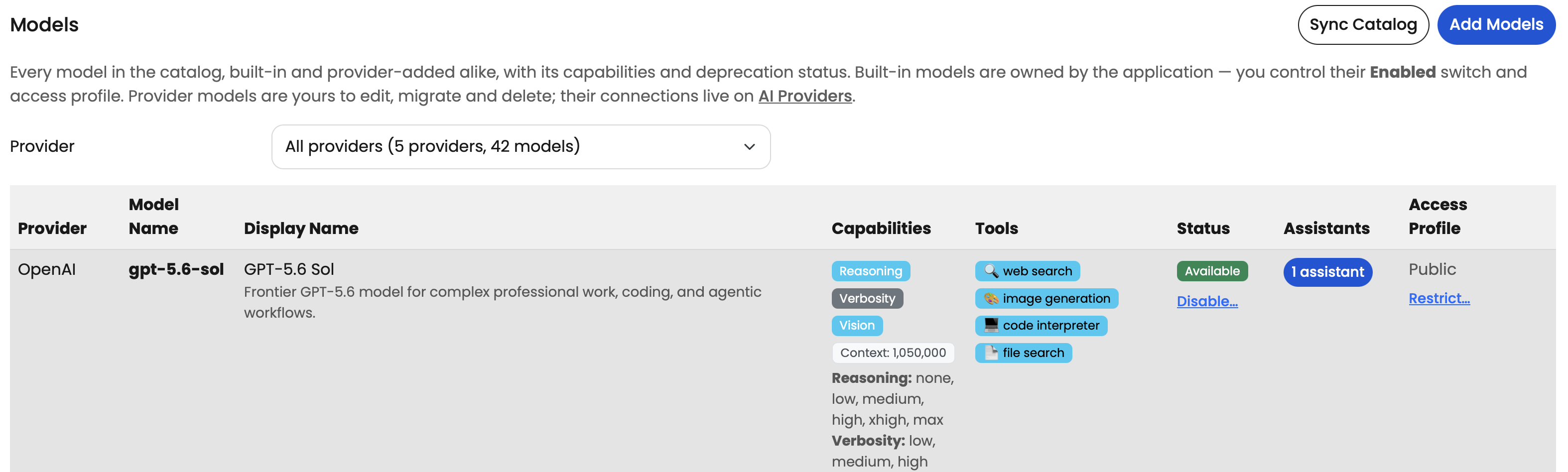
Once enabled, provider models can also be accessed via Admin > Configuration > Models.
You can filter by provider:
How model switching works in threads
Users may be able to switch models during a thread, but this depends on what has already happened in that thread.
For example, if a thread has already used a feature that a provider model does not support, Theta Assist may prevent switching to that model.
This helps avoid broken or inconsistent behaviour.
Troubleshooting
The provider will not connect
Check that:
- the API key is correct
- the endpoint or provider type is correct
- your provider account is active
- the provider allows access from your environment
The model is added but not usable
Check that:
- the model has been tested successfully
- the model is enabled
- the model supports chat use in Theta Assist
- required capabilities have been configured correctly
The model does not show capabilities
Some providers do not return complete capability data.
If this happens:
- check the provider documentation
- update the model settings manually if needed
- test the model before enabling it
A user cannot switch to a provider model
This can happen if the current thread has already used a feature the target model does not support.
For example, a thread may not be able to switch from one model type to another after using features such as code interpreter or file search.
I’m not sure which provider to support
Start with providers and models that:
- your team already has accounts for
- support the features you need
- have clear documentation
- fit your cost and governance requirements
Related articles