Share assistants and threads in Theta Assist
Theta Assist has collaboration built in, with sharing options for both assistants and threads.
Quick links
Sharing assistants
You can share an assistant you have created, if you think it will be useful for others too. Make sure you've tested it before sharing.
How to share assistants
Click the three dots below the assistant name on an assistant you have edit access to:

Or go directly to the Share tab when editing the assistant.
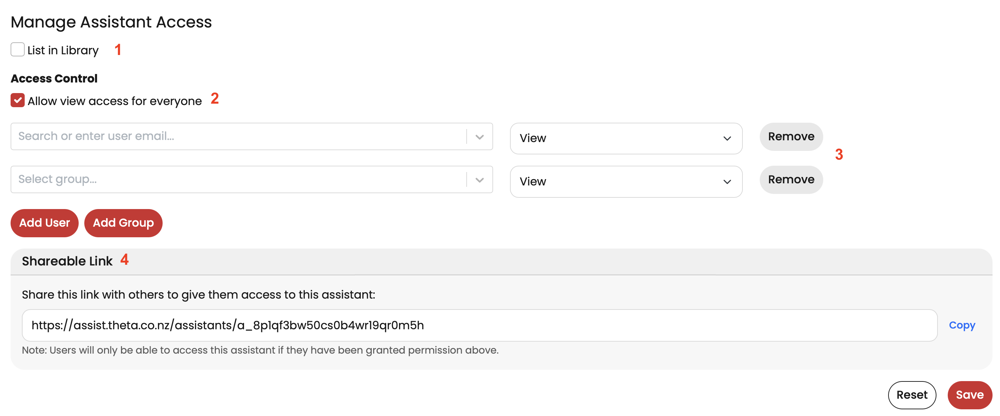
Add desired access -
-
- List in library. This means that the assistant will be visible in your colleagues' library list. This doesn't come with any access permissions, but colleagues will be able to request access from you (via e-mail).
- Allow view access for everyone. This means that anyone in your organisation will be able to view and use the assistant.
- Add specific access. You can grant individuals or groups view or edit access to your assistant. Edit access allows them to make changes to your assistant
- Optionally, copy a link to the assistant and share it directly with the person/s or group/s you've granted access. The link by itself doesn't grant access - you need to do this via step 2 or 3 above
Finding shared assistants
People you've shared with won't be notified, but they will be able to see the assistant in their library - in the All or Shared with Me tab

Sharing assistants: admin controls
As a Theta Assist admin, you can require admin approval for sharing assistants - access this via Admin > Configuration > Settings
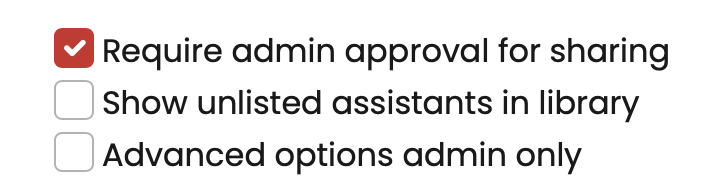
If this is enabled, you'll see any pending requests on the Sharing approval tab.

Considerations when sharing assistants
When you share an assistant, any background information, such as files and system prompts, becomes accessible to others. Take care to ensure you're not inadvertently sharing confidential or sensitive information. Learn more.
Sharing threads
How to share threads
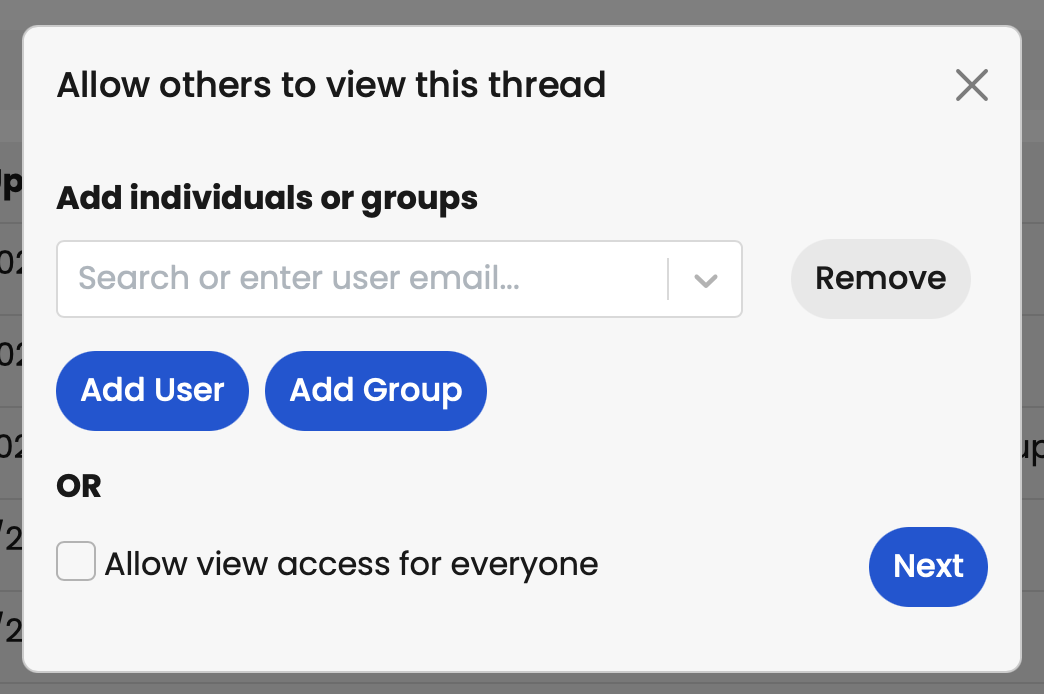
Thread sharing in Theta Assist allows users to share a conversation thread with specific people, with groups or with everyone.
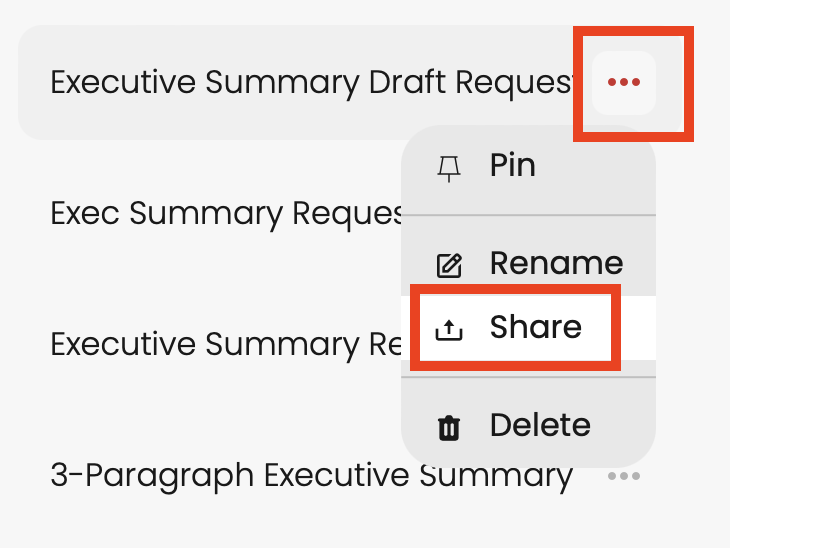
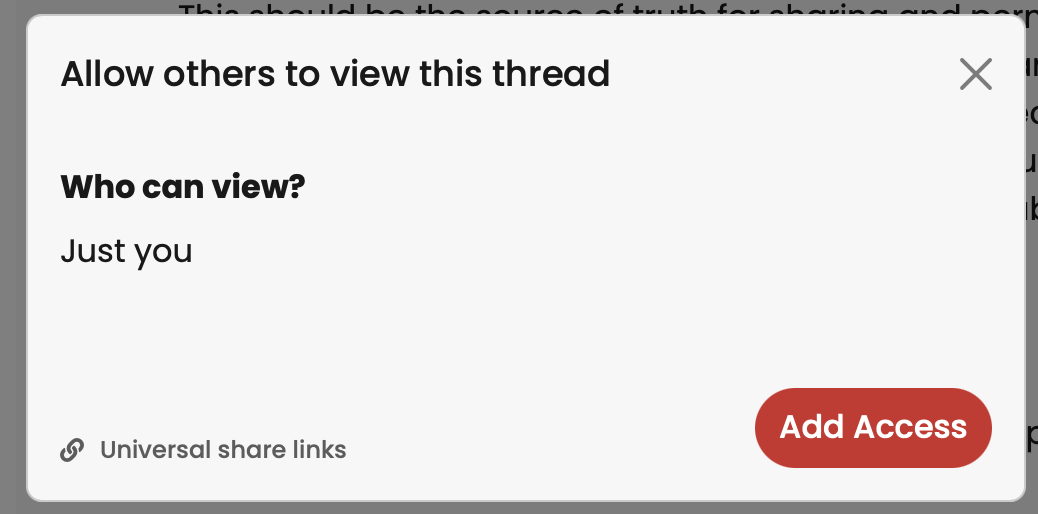
To share a thread, click the three dots (...) next to the thread name and click Share
Click Add access. You can allow view access for everyone or just specific people or group/s. You'll also need to send them a link to the thread - this is shown after you click Next.
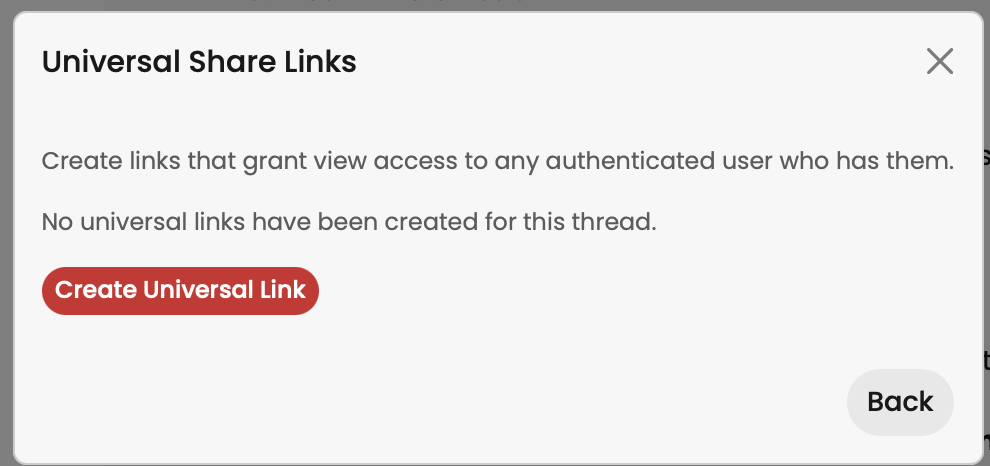
You also have the option to share a universal link to the thread. This link will be accessible to any authenticated user with the link.
Viewing shared threads
Shared threads are indicated in the assistant view by the eye icon, Click the eye to see who shared the thread, and have the option to pin or hide it.
You can also see shared threads via the Threads menu tab, which provides easy access to all of your threads across any assistant, plus any shared with you:

See also
Sharing assistants and sensitive information in Theta Assist