Generating images
Note - not available when using your own Azure OpenAI service
You can use Theta Assist to generate images. Just tell your assistant what you would like to see in your image, any style requirements, and see what the AI comes up with.
This can be handy for visualising your ideas, generating images for presentations, generating marketing content, etc.
In this article
Image settings
To specify the dimensions or quality of a generated image, click on the wrench icon below the chat input box: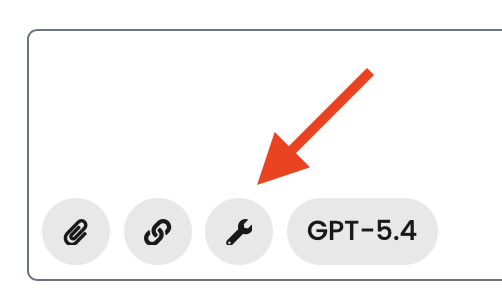
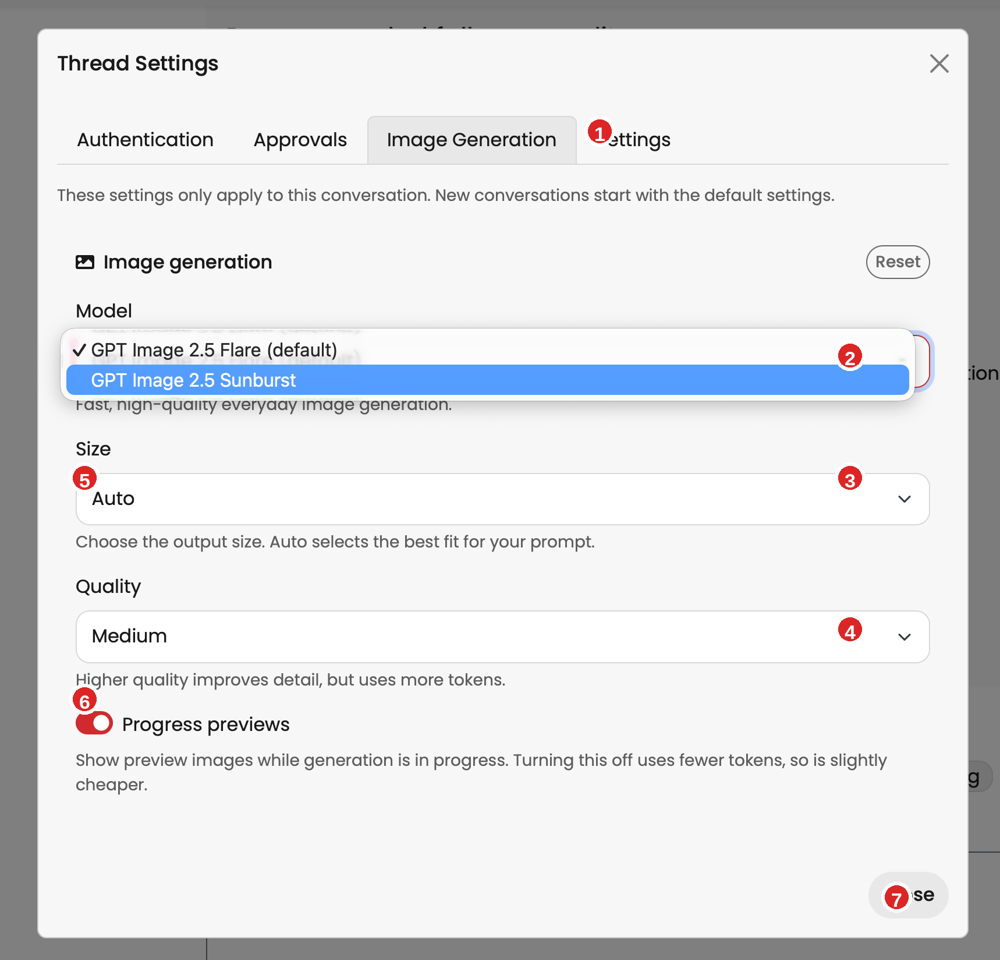
- Navigate to the image generation tab
- Select your preferred image generation model (for most uses, the default should be fine)
- Use the size selector to choose your preferred image dimensions
- Use the quality selector to choose your preferred level of detail. Higher quality consumes more tokens and may be slower.
- For each option, auto selects the best option for your prompt
- Progress previews show preview images while generation is in progress. Turning this off uses fewer tokens, so is slightly cheaper. Speed is not affected.
- Click close to apply settings for this thread.
Image generation settings are applied to a single thread only and are reset when you start a new thread.
How to download generated images
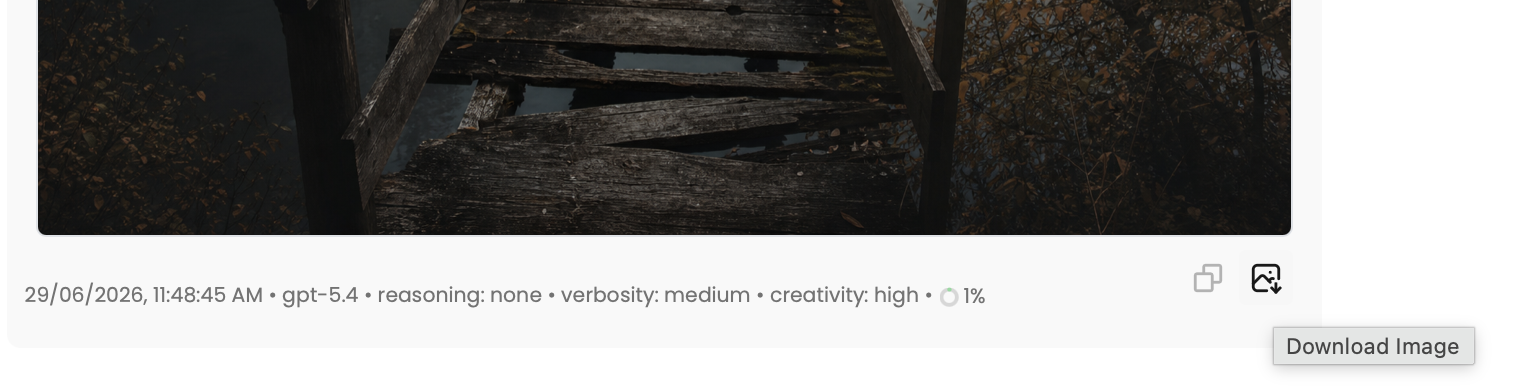
To download an image, click the image download button below the image:
Tips and tricks
Start from scratch
Any images already generated in a thread are remembered by the assistant. If you want to start from scratch, start a new thread. Otherwise you may see elements from previous images appearing in new ones.
Use thread files as inputs
Want to incorporate a logo or other visual element into your generated image? Attach the logo as a thread file.
Human spell-check
Carefully check any text in a generated image. AI is more likely to make mistakes with text in images than in text responses.
Prompting tips
Image generation works best when you use terms like "draw" or "edit" in your prompt. For example, if you want to combine images, instead of saying "combine" or "merge", you can say something like "edit the first image by adding this element from the second image".
Supported models
The image generation tool is supported by most recent models. To check, look for the image generation badge when switching models.

Plan limitations
Image input is now supported when using your own Azure OpenAI service (maximum 10 images per thread).
Image generation is not supported when using your own Azure OpenAI service.