Get started with Theta Assist
Get started with Theta Assist to find assistants, start conversations, attach files, use available tools and share your work.
This guide is for people who want a simple introduction to using Theta Assist day to day.
Quick links
What you can do
Theta Assist helps you complete tasks by chatting with assistants designed for specific jobs.
- Ask questions and get answers.
- Summarise, review or rewrite content.
- Draft emails and documents.
- Work with uploaded files.
- Search connected systems such as Microsoft 365.
- Use specialist assistants created by your team or organisation.
Find an assistant
- Open Theta Assist.
- Go to Home to see assistants already available to you.
- If you cannot find the assistant you need, open Library.
- Browse or search for the assistant.
- Select the arrow icon to open it.
- If you do not have access, request access if that option is available.
Start a thread
A thread is a conversation between you and an assistant.
- Open the assistant you want to use.
- Enter your request in the message box, or select a quick prompt.
- Select Send or press Enter.
- Continue the same thread when you want to keep the conversation context.
- Start a new thread for a separate task.
Use one thread per task where possible.
Attach a file
- Open a thread with the assistant you want to use.
- Drag the file into the message area, or select the paperclip icon.
- Select the file.
- Describe what you want the assistant to do with it.
- Select Send.
You can ask the assistant to summarise, review, extract, rewrite or analyse the file.
Use tools and connected services
Some assistants can use tools or connected services such as Microsoft 365.
- Open the assistant.
- If you see a red dot next to the wrench menu in the message box, click the wrench.

- Click Authenticate and complete the sign-in steps for the desired tool.
- Ask the assistant to help with the connected service.
For example, an assistant may be able to work with email, calendar, Teams, OneDrive or SharePoint.
Manage thread display settings
Use the wrench menu to choose how much detail appears in a thread. The default setting is focused on the final response.
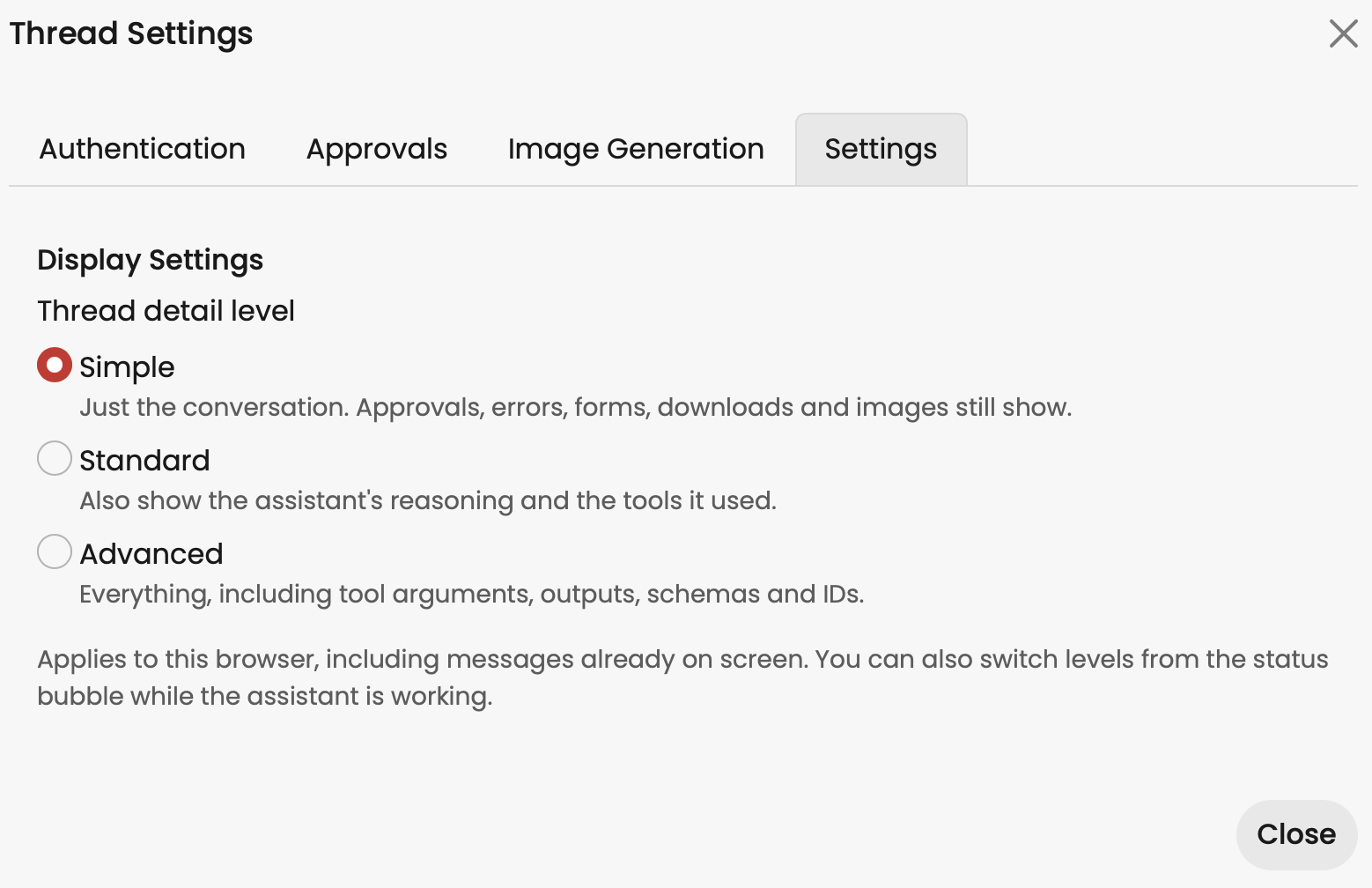
- Go to the settings tab to change the level of detail shown
- Select Standard when you want to see which tools or connected services the assistant used
- Select Reasoning when you want more advanced details
Share a thread
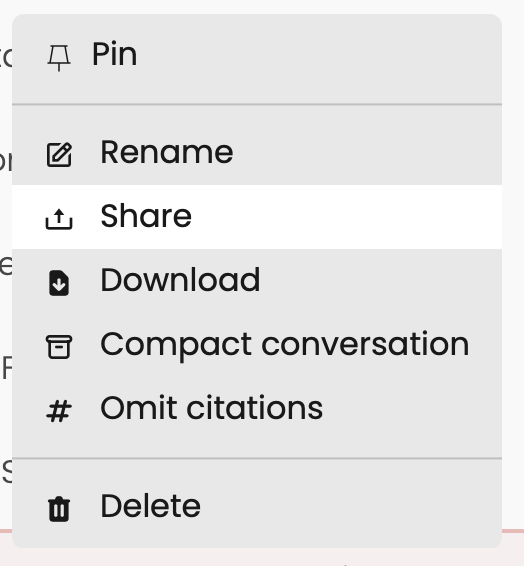
- Open the three-dot menu beside the thread name.
- Select Share.
- Choose people, groups or everyone in your organisation.
- Send the shared link to the intended recipients.
Read Share assistants and threads in Theta Assist for detailed guidance on groups, universal links and file access.
Troubleshooting
I cannot find the assistant I need
Check Library. If it is not available, you may not have access or it may be hidden from Library.
I can see a red dot beside the wrench icon
A tool or connected service needs authentication. Open the wrench menu and complete the sign-in steps.
I uploaded a file but the assistant did not use it properly
Send a clearer instruction that explains what to summarise, extract, review or create.
My response has stopped
Read the status message in the thread and use the recovery action shown. If the response does not recover, retry the request or start a new thread. Check the thread first to avoid repeating work that may already be complete.
You can download your thread (click the three dots next to the thread name) and attach it to a new thread to continue where you left off.
I want to start over
Start a new thread to begin a fresh task without earlier conversation context.