Connect Microsoft 365 apps like Outlook and Teams
Use Microsoft 365 access in Theta Assist to let your assistant work with the Microsoft tools you already use, such as Outlook, Teams, Calendar, OneDrive, and SharePoint.
This guide helps you work out what to do first, depending on whether you are an end user, an assistant author, or an admin.
Quick links
What this lets you do
Once Microsoft 365 access is enabled and authenticated, your assistant may be able to:
- read Outlook email metadata and messages
- draft new emails and replies
- read calendar events
- read Teams and chat content
- search OneDrive and SharePoint files
- help you find documents, meeting context, and recent information
The exact Microsoft options available depend on:
- what your organisation has enabled
- which assistant you are using
- whether you have authenticated your Microsoft account
- whether your admin has set up standard Microsoft connectors or the broader M365 Tools MCP server
Quick guide — connect your Microsoft account
Use these steps if Microsoft options have already been enabled for the assistant and you just need to connect your own account.
Before you start
- you are using an assistant with Microsoft access enabled
- you can see the wrench icon in the message box
- you have access to the Microsoft 365 account you want to use
- your browser allows pop-ups
Connect your account

- Open the assistant you want to use.
- Select the wrench icon in the message box.
- If there is a red dot, one or more tools still need authentication.
- In the list, find the Microsoft option you want to use.
- Click Authenticate.
- Sign in with your Microsoft account in the pop-up window.
- Review the permissions and approve them if prompted.
- Return to Theta Assist and confirm the red dot has disappeared.
After completing the task
Once connected, you can start asking for help with the Microsoft data you already have access to.
For example, you might ask the assistant to:
- summarise recent emails about a project
- find a file across Teams, OneDrive, or SharePoint
- show what your next week looks like
- pull together context for an upcoming meeting
If you do not see the wrench icon, or do not see Microsoft as an option
If you do not see the wrench icon, that assistant does not have any tools connected that require authentication.
If Microsoft is not listed when you open the wrench menu, it usually means the assistant or organisation has not enabled it yet.
In either case you can:
- ask the assistant author to enable Microsoft access for that assistant
- ask your admin to configure Microsoft access for your organisation
A simple message you can send is:
I want to use Outlook and Teams with this assistant. Can you enable Microsoft connectors or M365 Tools for me?
For assistant authors
Use these steps if Microsoft access has already been configured by your organisation and you want to make it available in your assistant.
- Open your assistant.
- Go to the Tools tab.
- Make sure advanced options are visible if needed.
- Review the list of available connectors and MCP servers.
- Enable the Microsoft option or options you want to use by ticking the relevant checkboxes.
- Save your changes.
Once enabled, users of that assistant should see the wrench icon in the message box and be able to authenticate their own Microsoft account.
Standard Microsoft connectors
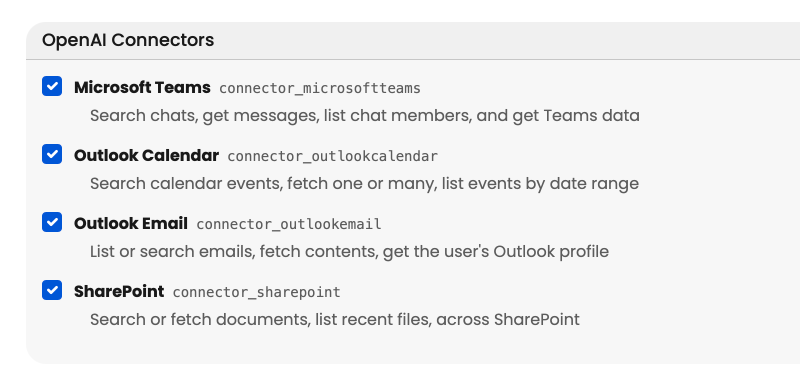
These are the standard built-in Microsoft connectors. Use them when the built-in Microsoft integration already meets your needs.
Important: If you are moving an assistant to an OpenAI model released from 1 September 2026 onwards, use M365 Tools instead of standard connectors. Newer OpenAI models do not support connectors.
Learn more in Connectors | Admin guide.
M365 Tools
M365 Tools is listed under MCP servers. Use it when you need broader Microsoft 365 capability and a wider set of actions.

Learn more in M365 Tools MCP server | Admin guide.
For admins
Use these steps if Microsoft options are not yet available in your organisation.
Set up standard Microsoft connectors
Admins can configure built-in Microsoft connectors for services such as:
- Microsoft Teams
- Outlook Calendar
- Outlook Email
- SharePoint
Important: Do not move assistants that rely on connectors to OpenAI models released from 1 September 2026 onwards until you have migrated them to M365 Tools or another suitable MCP-based alternative.
High-level setup steps:
- Go to Admin > Tools > Auth Configurations.
- Add a Microsoft authentication configuration.
- Go to Admin > Tools > Connectors.
- Select the Microsoft authentication configuration for each Microsoft connector you want to enable.
- Set the approval policy.
- Save your changes.
For more detail, see:
Set up M365 Tools MCP server
If you need broader Microsoft 365 capability, use the M365 Tools MCP server.
This supports a wider set of actions, including:
- email and attachments
- calendar access
- Teams chats and channel messages
- SharePoint and OneDrive search
- people lookup
- recent files
- Excel workbook reading
- draft email creation
High-level setup steps:
- Go to Admin > Tools > MCP Servers.
- Click + Theta Assist MCP Server.
- Select M365 Tools.
- Attach the appropriate Microsoft authentication configuration.
- Set the approval policy.
- Save your changes.
For more detail, see:
- M365 Tools MCP server | Admin guide
- Authentication configurations | Admin guide
- MCP servers | Admin guide
Troubleshooting
I can see the wrench icon, but Microsoft is not there
This usually means Microsoft access has not been enabled for that assistant.
Ask your assistant author or admin to enable it.
I clicked Authenticate, but nothing happened
Check that your browser allows pop-ups, then try again.
Authentication failed
Check that:
- you are signing in with the correct Microsoft account
- you already have access to the Microsoft 365 services involved
- your organisation allows that connector or MCP server
- you approved the requested permissions
If needed, contact your admin.
The red dot is still showing
- Refresh the page.
- Open the wrench icon again.
- Check the authentication status.
- Re-authenticate if needed.
It worked before, but now it is asking again
Authentication tokens can expire. If that happens, the red dot may reappear and you will need to authenticate again.
Related guides
- Connectors | End user guide
- Adding tools and connectors to your assistant
- Connectors | Admin guide
- MCP servers | Admin guide
- M365 Tools MCP server | Admin guide
- Authentication configurations | Admin guide