Jobs | Admin Guide
Table of Contents
Overview
Jobs in Theta Assist brings together 2 related functions in one place:
- Scheduled jobs let assistant authors set prompts to run automatically on a recurring schedule, such as every Monday morning or every day at 9 am.
- Background job tracking lets users check the progress and results of async tasks started during a conversation, such as batch processing.
Administrators also have a separate monitoring view where they can see jobs and schedules for all users and cancel any job that is still running.
Enabling jobs
To enable Jobs:
- Go to Admin > Tools > Settings.
- In Tool Settings, turn on Enable Jobs.
This setting enables scheduled operations and background jobs.
If Jobs is turned off:
- Jobs does not appear in the main navigation.
- Schedules does not appear in assistant configuration.
- Batch processing built-in tools, such as
async_start_process_*andasync_start_code_generation, show an error if someone tries to use them.
Note: The admin monitoring page is still available to system administrators even when Jobs is turned off.
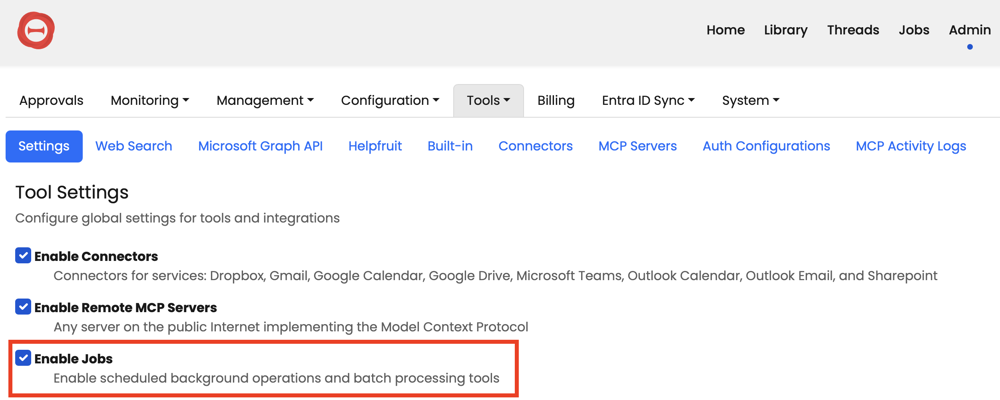
Tool Settings with Enable Jobs selected. Note: The screenshot may differ slightly from your version of Theta Assist.
Jobs page
Users access the Jobs page from the main navigation. The page has two tabs:
| Tab | What it shows |
|---|---|
| Jobs | Background tasks started from conversations, such as async or batch processing jobs |
| Scheduled | Recurring jobs set up on the user's assistants |
The sections below explain each tab in more detail.
Scheduled jobs
What they are
A scheduled job is a recurring task attached to an assistant. At the scheduled time, Theta Assist sends the saved prompt to the assistant automatically, creates a thread, runs the assistant using its configured tools, and saves the result.
Typical uses include:
- A weekly report that pulls data from connected systems and summarises it.
- A daily briefing that checks email, calendar, or task lists.
- A recurring data extraction or monitoring task.
Where they are configured
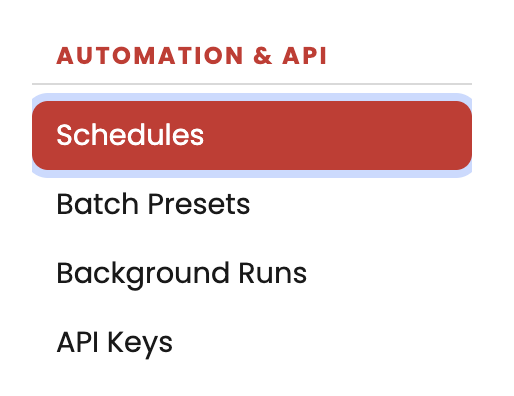
Scheduled jobs are created and managed on the assistant edit page, in the Automation & API > Schedules section (visible when advanced options are enabled).
This is an assistant author capability. Any user who can edit an assistant can add or manage schedules for it.
Each schedule includes:
| Field | Description |
|---|---|
| Name | A label for the schedule, such as "Weekly Sales Summary" |
| Assistant | The assistant that will run the job |
| Schedule | A cron-based schedule with a visual builder, such as every Monday at 9am. Set it to Never to stop it running without deleting it |
| Time Zone | Set automatically from the author’s browser time zone when the schedule is created. This field is read-only |
| Initial Prompt | The prompt sent to the assistant each time the schedule runs |
Viewing scheduled jobs
On the Scheduled tab of the Jobs page, users can see:
- The schedule description
- The last run time
- The next scheduled run time
- The assistant linked to the schedule
If a schedule is set not to run, its description appears as Never.
Expanding a row shows the time zone, raw cron expression, and initial prompt.
Users can also run a schedule immediately from this page. This starts a one-off run outside the normal schedule.
Detailed guide to scheduled jobs.
Background job tracking
What appears here
The Jobs tab shows background tasks started from conversations. These are usually async operations, such as batch processing jobs started with built-in tools.
Each job in the list shows key details, including:
- The job name
- Its status
- When it was created
- When it finished
- Links to the related assistant and thread
The page refreshes automatically every 5 seconds while jobs are Pending or Running.
Job statuses
A job can have one of these statuses:
| Status | Meaning |
|---|---|
| Pending | The job has been created and is waiting to start |
| Running | The job is currently in progress |
| Completed | The job finished successfully |
| Failed | The job stopped because of an error |
| Cancelled | The job was cancelled before it finished |
What users can view
Users can expand a job row to see more detail, including:
- The job ID
- The current progress message
- Error details, if the job failed
- Any child operations created by the job
Selecting View details opens the full job detail page. This includes timing information, the full result message, and, for batch processing jobs, a paginated table showing the status and result for each item.
What users can do
Users can:
- Cancel jobs that are still Pending or Running
- Delete jobs that have already finished
Filtering
Users can filter the jobs list by name and status, and choose how many items to show per page.
Admin monitoring view
System administrators can go to Admin > Monitoring > Jobs to monitor jobs and schedules across all users.
The admin view includes the same information as the user Jobs page, plus:
- User email details
- Extra filtering by user email
- Access to full job details across the organisation
- The ability to cancel running jobs
Admins can also view schedule settings, including the time zone, cron expression, and initial prompt.
Admin job detail page
Admins can open a full detail page for any job. This page includes:
- Created, started, and completed times
- Total run duration
- The owner’s email address
- Links to the related assistant and thread
- The full result message
- Exception details, if the job failed
- For batch jobs, a table showing the status, result, and any error for each item
- Any child operations created by the job
What admins can and cannot do
| Action | Admin | Notes |
|---|---|---|
| View all users' background jobs | Yes | Includes status, messages, exceptions |
| View all users' scheduled jobs | Yes | Includes prompt, timezone, cron expression |
| Filter by user email | Yes | Both jobs and schedules |
| Cancel any running or pending job | Yes | Confirmation prompt shows the owner's email |
| View full exception / error detail | Yes | Via admin job detail page |
| View batch item results for any job | Yes | Via admin job detail page |
| Delete a job | No | Users can only delete their own |
| Edit or delete a user's schedule | No | Only the schedule owner can modify it |
| Trigger a user's schedule manually | No | Only the schedule owner can run it |
| Modify a user's schedule configuration | No | Read-only for admins |
The intent is that the admin view is for monitoring and triage — admins can observe and intervene (cancel) but cannot modify user-owned configuration.
Related articles
- Built-in tools | Admin guide — admin overview of built-in tools and access control
- Batch Processing Tools | Guide — how to choose and use each batch tool
- Create and run batch presets in Theta Assist — save and reuse repeatable batch tasks
- Scheduled jobs | User guide — how users create and run scheduled jobs