Built-in tools | Admin guide
Quick links
Overview
Built-in tools are AI capabilities built directly into Theta Assist — features such as batch file processing, code generation, and HTML generation. Unlike MCP servers, which connect to external services, built-in tools run entirely within the platform.
All built-in tools are disabled by default. An administrator must explicitly enable each tool before it becomes available to users. This page is where you do that.
The built-in tools page
Navigate to Admin > Tools > Built-in to see the full list of Theta Assist's built-in tools.
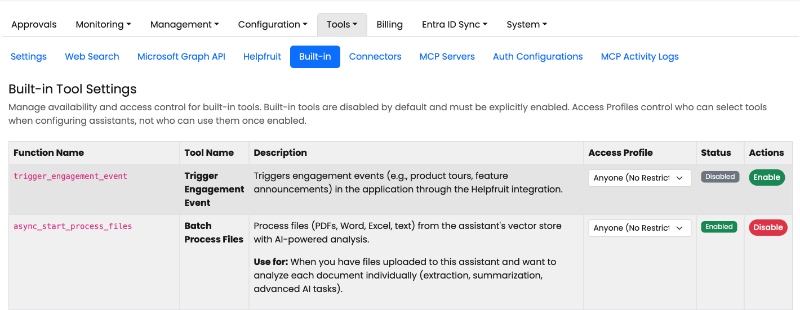
Each row in the table shows:
| Column | Description |
|---|---|
| Function name | The internal identifier used by the AI, for example async_start_process_files |
| Tool name | A human-readable display name shown to users |
| Description | What the tool does — shown when users configure their assistant |
| Access profile | Which users can add this tool to their assistant. See section 4. |
| Status | Whether the tool is currently Enabled or Disabled |
| Actions | Toggle button to enable or disable the tool |
Changes made here take effect immediately platform-wide.
Enabling and disabling tools
Click the toggle in the Actions column to enable or disable a tool.
- Disabled (default): Users cannot add the tool to an assistant. If the tool is already added to an assistant, it cannot be used.
- Enabled: Users can add the tool to an assistant, subject to any access profile restrictions.
Note: Disabling a tool does not remove it from assistants that already have it. If the assistant tries to use the tool, it is blocked and the user sees this message: “This tool has been disabled by an administrator. You can remove it from this assistant, but you cannot re-enable it.”
There is no bulk enable or disable option. You must update each tool individually.
Controlling access with access profiles
The Access Profile dropdown on each tool lets you restrict which users are allowed to add that tool to their assistants.
- Anyone (No Restriction) — Any authenticated user can add the tool to their assistant.
- A specific Access Profile — Only users who are members of that profile can see and add the tool when configuring their assistant.
This controls configuration access only — it determines who can add the tool to an assistant. It does not restrict who can use an assistant that already has the tool configured.
For a full explanation of how access profiles work, see Access Profiles — Admin Guide.
Types of tools
Batch processing tools
These tools allow an assistant to process large volumes of data or files asynchronously as a background job. Theta Assist currently supports 3 batch processing tools. They require the Jobs setting to be enabled — see below.
| Tool name | Function name | What it processes |
|---|---|---|
| Batch Process Files | async_start_process_files |
Files (PDF, Word, Excel, text) uploaded to the assistant |
| Batch Process Data File | async_start_process_data_file |
Rows or records from CSV, JSON, or XML files |
| Batch Process Tool Results | async_start_process_tool_results |
Arrays returned from MCP tool calls |
For usage examples and worked setups, see Batch Processing Tools | Guide. For reusable saved configurations, see Create and run batch presets in Theta Assist.
Code and HTML generation tools
These tools allow an assistant to generate or revise code and HTML pages, using specialised AI models with real-time streaming output. They run as background jobs.
| Tool name | Function name | Purpose |
|---|---|---|
| Code Generator | async_start_code_generation |
Generate code in any language using a selected AI model |
| HTML Generator | async_start_html_generation |
Generate complete, standalone HTML pages with CSS and JavaScript |
| HTML Revision | async_start_html_revision |
Revise and improve a previously generated HTML page |
Detailed guidance on these tools will be covered in a separate article.
Supporting tools
These tools provide read-only information to the assistant and do not run as background jobs.
| Tool name | Function name | Purpose |
|---|---|---|
| List Available Models | list_available_models |
Returns the AI models the current user can access |
| List Assistants | list_assistants |
Returns the assistants the current user has access to, with their IDs and names |
list_available_models helps users discover which models they can pass to batch processing tools.
Dependency: Jobs setting
The three batch processing tools and the three code and HTML generation tools all depend on the Jobs background processing feature being enabled in Theta Assist.
If Jobs is not enabled:
- The tools can still be enabled on this page and added to an assistant's configuration.
- However, when a user tries to invoke one, the assistant configuration UI will show: "This tool requires the 'Jobs' setting to be enabled. Contact your administrator."
To enable Jobs, navigate to the relevant application settings. Ensure Jobs is enabled before enabling any of the async_start_* tools, otherwise users will see an error when attempting to use them.
Related articles
- Batch Processing Tools | Guide — how to choose and use each batch tool
- Create and run batch presets in Theta Assist — save and reuse batch-processing setups
- Jobs | Admin Guide — enable Jobs for batch processing