Use the voice assistant in Theta Assist
The voice assistant lets you use Theta Assist hands-free. You can navigate the app, manage assistants and threads, and ask an assistant to complete supported work using your voice.
Beta feature: Voice assistant is available on request. Ask your Theta Assist administrator or Theta Support to enable it for your organisation.
Quick links
Start and end a voice session
- Select the microphone icon to open voice assistant.
- Select Connect to start a voice chat.
- Speak your request.
You can drag the microphone icon up or down the page to a position that suits you.
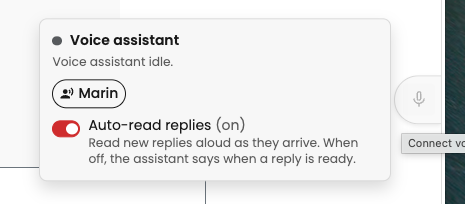
Voice assistant on desktop. Move the microphone icon up or down the page.
To end the session, say “disconnect” or “end chat”. You can also select Close.
Select Voice: [name] to change the voice. Turn Auto-read replies on to hear new replies as they arrive. When it is off, Voice Assistant tells you when a reply is ready.
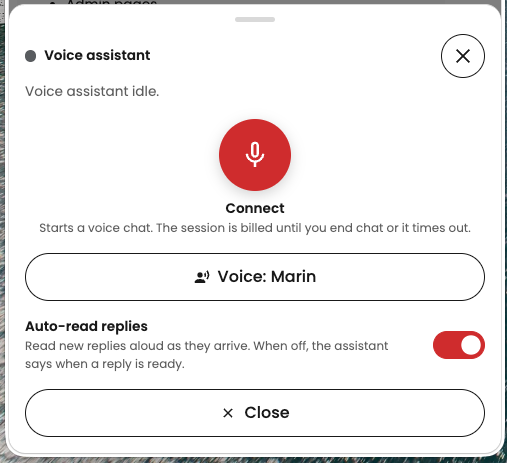
Voice Assistant on mobile.
Ask what an assistant can do
When you open an assistant, voice assistant knows the capabilities available to it. This can include connected services such as Outlook or SharePoint, tools, knowledge files, skills and suggested prompts.
Ask questions such as:
- “What can the HR assistant do?”
- “Does the Timesheet Helper have access to my calendar?”
- “Which assistant can help me find a SharePoint file?”
Voice Assistant can help you choose an assistant before you start work. When a request matches an assistant’s capabilities, Voice Assistant can ask that assistant to complete the task on your behalf.
It tells you what it is doing while it works, for example, “It is checking your Outlook calendar.” It reads the result back, including any files or images the assistant produces.
Navigate Theta Assist
Use voice assistant anywhere
You can ask the voice assistant to:
- Go to Home, Library or Threads.
- Change the theme.
- Explain highlighted text.
- Tell you which voice is in use or change the voice.
- Download the transcript.
- Copy error details.
- End the voice session.
Search and open items
On the Home, Library and Threads pages, you can:
- Search and filter items.
- Show favourites only or show all items.
- Ask what a search found.
- Move to the next page of results.
- Open or add an item by its number or name.
For example, say:
- “What did that search find?”
- “Show favourites only.”
- “Open number 3.”
- “Open the HR assistant.”
- “Next page.”
Work with assistants and threads
Work with an open assistant
When an assistant is open, you can:
- Draft or send a message.
- Favourite or unfavourite the assistant.
- Find or open one of its threads.
- Start a new thread, with an optional first message drafted or sent.
For example, say “Start a new thread and ask it to summarise this document.”
Work with an open thread
When a thread is open, you can:
- Rename, pin or unpin the thread.
- Delete the thread after confirming.
- Ask what the conversation is about.
- Ask Voice Assistant to read messages or your draft back to you.
- Stop a running response.
- Run available follow-on actions.
For example, say:
- “What’s this thread about?”
- “Read that back.”
- “What did I ask last?”
- “Read the one before that.”
- “What’s in my draft?”
- “Rename this thread to Project update.”
- “Pin this thread.”
Recover from a failed message
If a message fails, say “What went wrong?” the voice assistant explains the error and offers only the actions that are available. Depending on the error, you may be able to retry, recover, compact and retry, or delete the message.
Approve actions
Some requests require an assistant to use a connected service or tool. The voice assistant reads the request to you and lets you approve or deny it before the action runs.
Set up voice assistant
Voice must be enabled for your organisation. Access is controlled through an access profile, and an OpenAI voice model must be available in the environment.
You need to be a system admin to set up voice for your organisation.
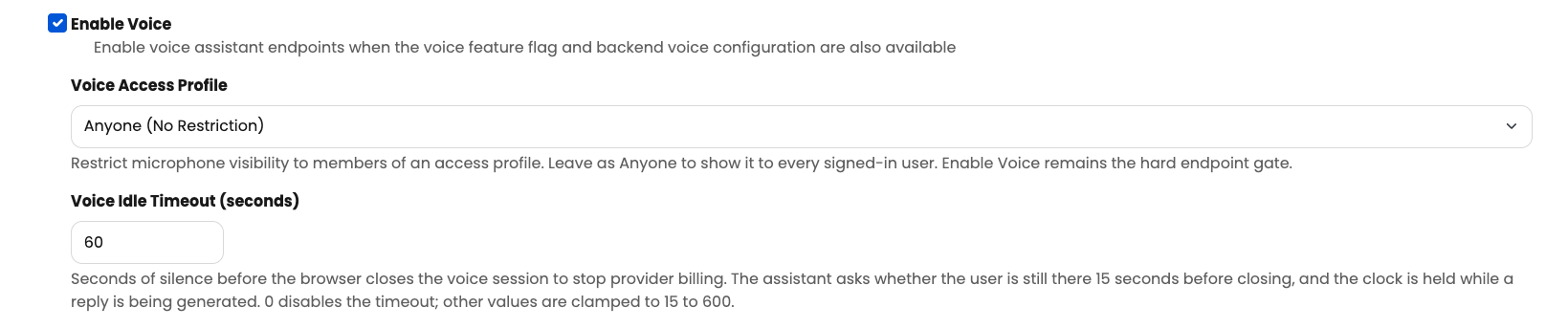
- Navigate to Admin > Tools > Settings
- Select Enable Voice. If you can't see this setting, contact Theta Support.
- Choose a Voice Access Profile to control who can see and use the microphone. Select Anyone (No Restriction) to make it available to all signed-in users. More on access profiles.
- Set the Voice Idle Timeout (seconds). This controls how long the browser waits in silence before ending the session. The assistant warns the user 15 seconds before closing.
What is not included
The voice assistant does not currently support sharing, attachments, jobs or admin pages. It only offers actions that are available for your current page, access level and selected assistant. Voice does not currently work when using Theta Assist on Teams.