Microsoft Planner in Theta Assist
Work with Microsoft Planner tasks from a Theta Assist thread, so you can create, update and organise work without switching between apps.
Use this when you want Theta Assist to help you manage Planner tasks across supported Microsoft Planner boards you already have access to.
See also:
Quick links
What you can do
With the Planner MCP tool, Theta Assist can help you:
- read existing Planner tasks
- create new Planner tasks
- edit existing Planner tasks
- move tasks into or out of buckets
- add and update task details such as checklists, comments, labels, due dates, status and importance
- read task comments
- add comments to tasks
- @mention colleagues in comments
- edit or delete your own comments
- react to comments with emoji
- add links to tasks
The tool supports both group boards and private boards.
Before you start
Does your assistant have the Planner MCP tool enabled?
- To check this, ask the assistant owner.
- If you are the assistant owner, click edit and navigate to the Tools tab. You may need to enable advanced options first. Look for Microsoft Planner under MCP Servers. If you can’t see it, ask your Theta Assist admin to enable it.

Have you authenticated your Microsoft account?
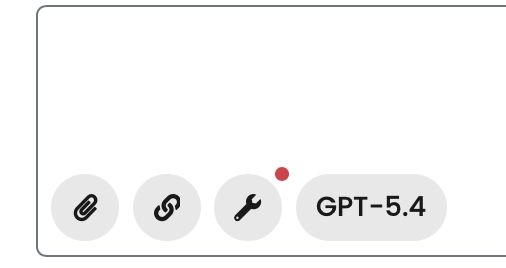
- If this is needed, you’ll see a red dot next to the wrench icon. Click it to complete authentication.
Board access:
- Make sure you already have access to the Planner board in Microsoft 365.
- Make sure your organisation allows the tool to write to that board, if you want to create or update tasks.
Use Planner from a thread
Find or review tasks
- Open your thread in Theta Assist.
- Ask Theta Assist to find or summarise tasks from a supported Planner board.
- Review the returned tasks and confirm which one you want to update, if needed.
Example prompts:
- Show my open tasks in the Marketing board.
- Find overdue tasks in the Project Alpha board.
- Summarise the tasks in the Launch bucket.
Create a new task
- Open a thread in Theta Assist.
- Ask Theta Assist to create a Planner task.
- Include the board name and any task details you want to set.
- Check the result returned in the thread.
Example prompts:
- Create a task in the Website refresh board called “Review home page copy”, due Friday.
- Add a high-importance task to the Support backlog board and include a checklist for triage.
Update a task
- Ask Theta Assist to find the task you want to change.
- Confirm the task if there is more than one match.
- Ask Theta Assist to update the fields you need.
Example prompts:
- Move the “Prepare launch email” task to the Ready bucket.
- Add a checklist to the “Quarterly review” task.
- Mark the “Draft FAQ” task as complete.
- Add a due date of 30 April 2026 to the “Ops handover” task.
Work with comments
You can ask Theta Assist to help with Planner task comments.
- Ask Theta Assist to find the task you want to comment on.
- Confirm the task if there is more than one match.
- Ask Theta Assist to read, add, edit, delete or react to comments.
Example prompts:
- Show me the comments on the “Quarterly review” task.
- Add a comment to the “Website refresh” task saying the draft is ready for review.
- Comment on the task and @mention Kei.
- Edit my last comment on the task and change “Wednsday” to “Wednesday”.
- Delete my last comment on the task.
- React with a like to the latest comment on the task.
Useful notes:
- You can only edit or delete comments that you originally posted.
- You can't @ mention on private boards
- If a task has never had a comment, Theta Assist will return that there are no comments yet.
Add links to a task
- Ask Theta Assist to update or create the task.
- Include the link you want attached.
- Confirm the task if needed.
You can add links to supporting content such as documents, SharePoint pages, websites, tickets or related systems.
What task details Theta Assist can update
The Planner MCP tool can work with key task fields including:
- task details
- checklists
- comments
- labels
- due dates
- status
- importance
- bucket placement
- links
Special thread links
When prompted, Theta Assist can add a special link back to the thread when creating a Planner task.
This means:
- you do not need to manually share the thread
- anyone with that special link can open the thread
- those links can be revoked if needed
This is useful when you want the task to keep a link to the original discussion and context.
Example prompt:
- Create a task in the Website refresh board called “Review home page copy”, due Friday, and include a link back to this thread.
What is not supported
The Planner MCP tool does not currently support:
- creating new boards
- creating bucket names
- editing bucket names
- attaching files directly to tasks
- Premium Planner boards
Important: You can attach links, but not files.
Note: Premium Planner boards are not supported because they are a different Microsoft product, even if the interface looks similar.
Troubleshooting
I can’t update a board
This may mean:
- you do not have access to that board in Microsoft 365
- your organisation has restricted which boards the tool can write to
- the board is not supported by the current naming rule
Ask your admin if you are unsure which boards are enabled for write access.
I can’t add, edit or delete comments
This may mean:
- your Microsoft 365 account is not authenticated
- your organisation has not granted the required Planner permissions
- the comment was written by another person, so it cannot be edited or deleted by you
- the task has no comments yet
If the issue continues, ask your admin to check the Planner MCP tool permissions.
I want to attach a file
File attachments are not supported by this tool. Add a link instead.
I can’t create a new board
Board creation is not supported. Create the board in Microsoft Planner first, then use Theta Assist to work with tasks inside it.