Coming soon: Create and manage personal access tokens
Use a personal access token to call an assistant’s API as yourself, using your connected accounts, such as Microsoft 365. You choose which assistants each token can call and how long it remains valid.
Keep your tokens private. Anyone with a token can act as you on the selected assistants.
Quick links
Before you start
To use a personal access token with an assistant:
- You must have access to the assistant.
- The assistant must allow personal access tokens.
- You must select that assistant when creating or editing the token.
Enable personal access tokens on an assistant
An assistant editor can allow personal access tokens by opening the assistant’s Automation & API > API Keys page and turning on Allow personal access tokens.
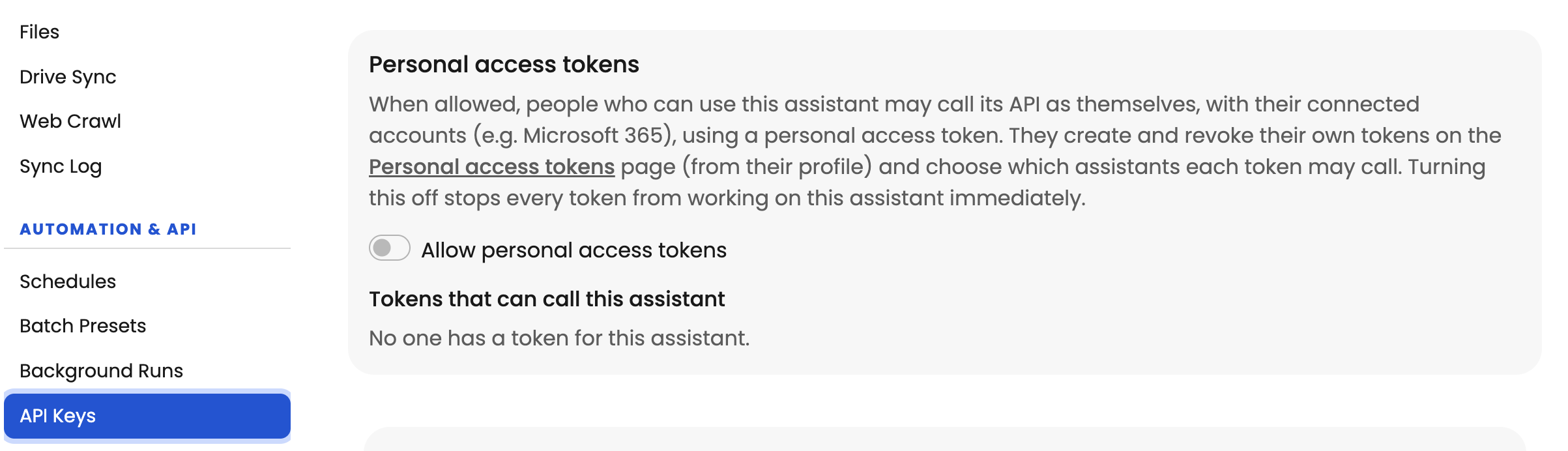
If the assistant needs to access an external service, such as Microsoft 365, sign in to that service through the assistant’s tools in Theta Assist before using the API.
Create a token
- Open your Profile - marked by your initials, top right.
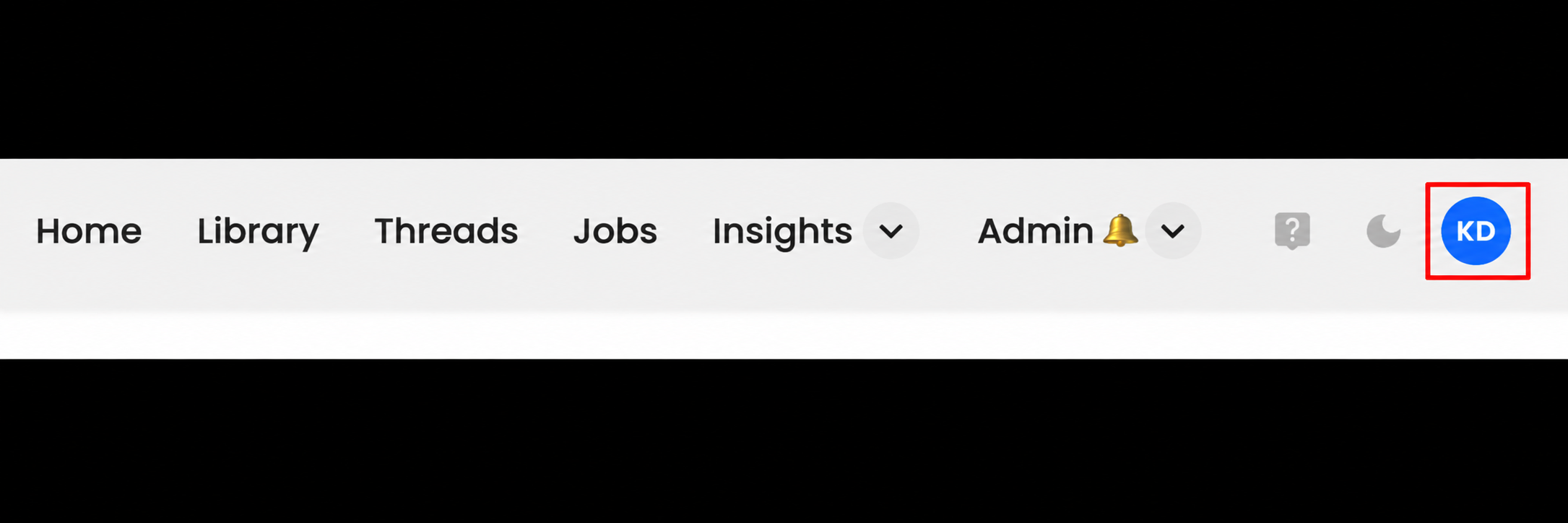
- Select Manage personal access tokens.
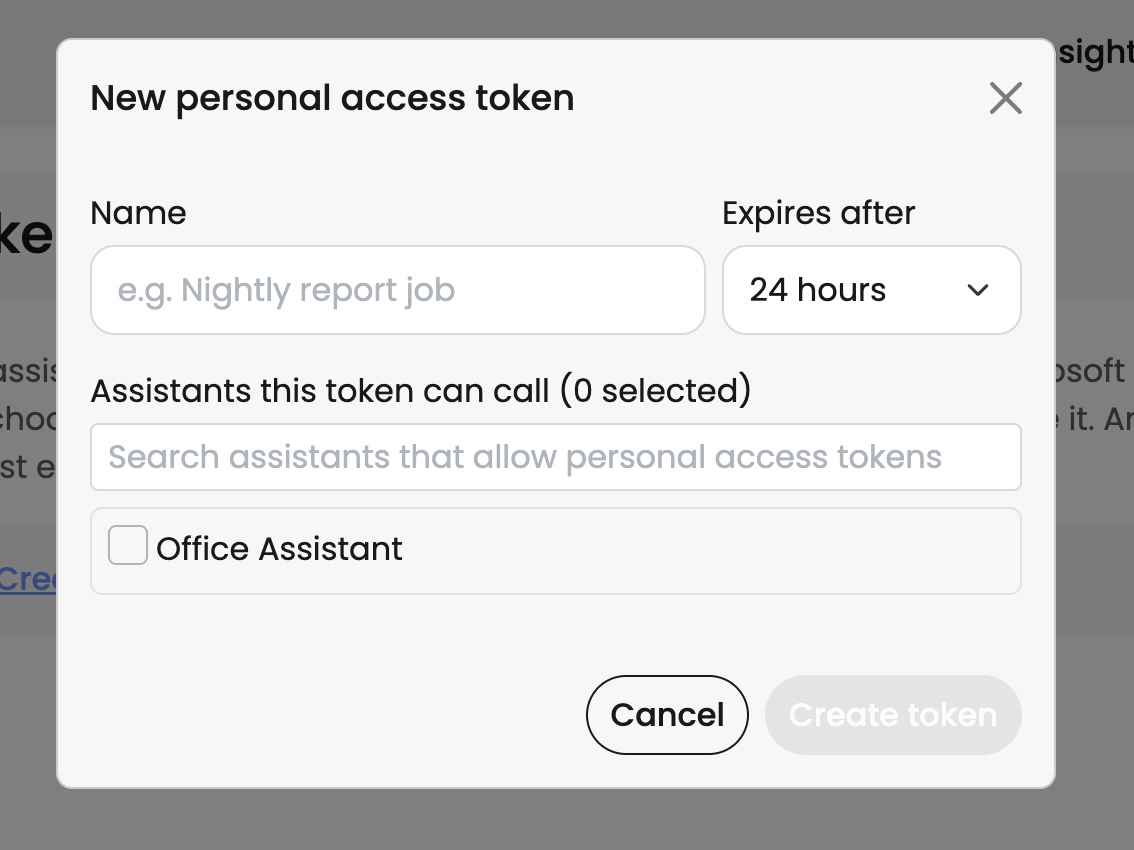
- Select New token.
- Enter a descriptive Name, such as “Nightly report job”, so you can identify what the token is used for.
- Under Expires after, choose 2 hours, 24 hours, 7 days, 30 days, 90 days or Never.
- Under Assistants this token can call, select the checkbox for each assistant the token needs to access. Use the search field to find an assistant.
- Select Create token.
Expiry details
Choose the shortest expiry that meets your needs, and select only the assistants the token needs to call.
Never gives the token no expiry date. The token still requires you to retain access to the selected assistants and each assistant to allow personal access tokens. You can revoke it when it is no longer needed.
Use your token
Send the personal access token in the Api-Key header of your API request.
Requests run as you, using your connected accounts. The token works only for the assistants selected for it.
Keep the token private and out of shared documents, screenshots and help requests.
Review your tokens
Open Profile > Manage personal access tokens.
The token list shows:
| Column | What it shows |
|---|---|
| Name | The name you gave the token. |
| Token | A shortened token value. |
| Assistants | The assistants the token can call. |
| Expires | The token’s expiry date and time, where an expiry is set. |
| Last used | When the token was last used, or Never if it hasn’t been used. |
Review the list regularly and revoke tokens you no longer need.
Edit a token
- Open Profile > Manage personal access tokens.
- Find the token and select Edit.
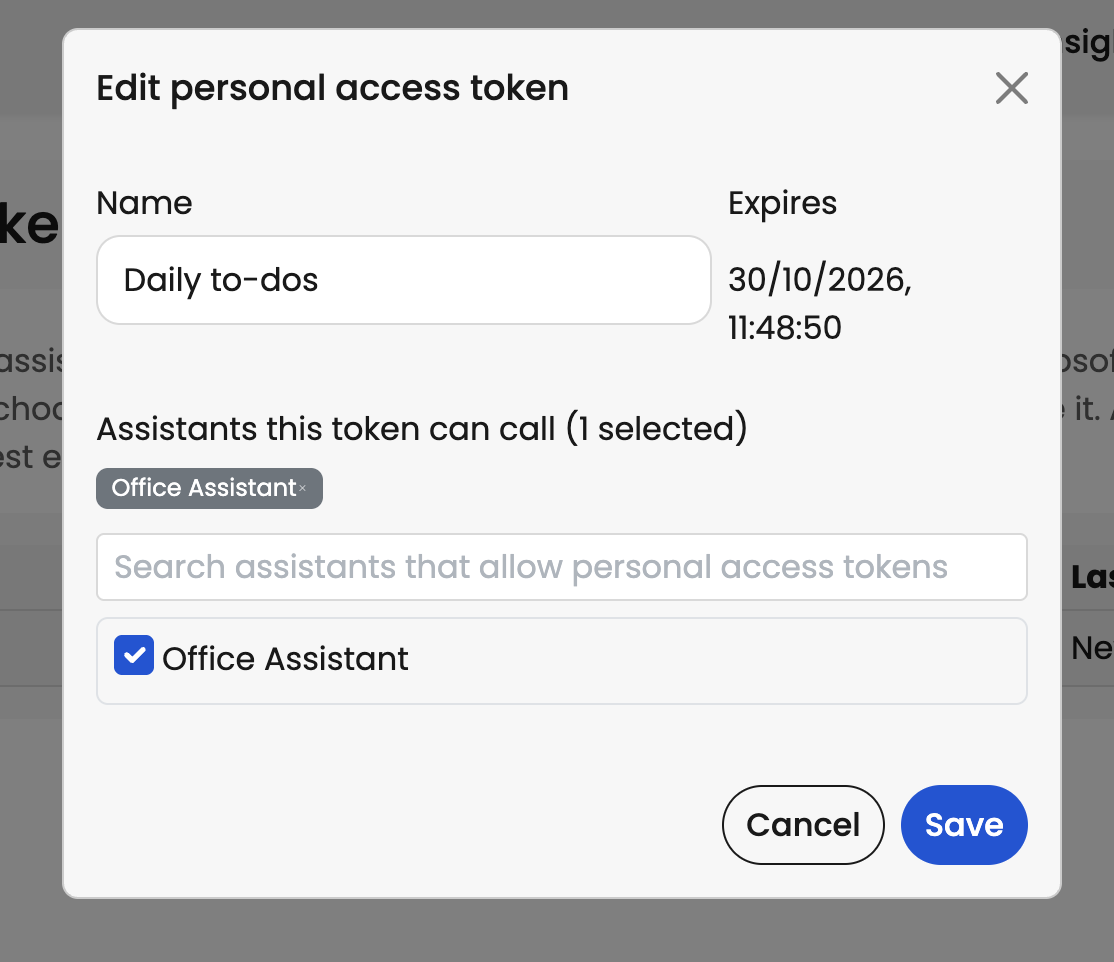
- Update the Name, or change the assistants under Assistants this token can call. Select an assistant’s checkbox to add it, or clear its checkbox to remove it. Use the search field to find an assistant.
- Select Save.
The edit form displays the expiry but does not provide an option to change it.
Revoke a token
Revoking a token immediately stops any integration using it from working. Check what depends on the token before continuing.
- Open Profile > Manage personal access tokens.
- Find the token and select Revoke.
- Check the token name in the confirmation message.
- Select Yes to revoke the token, or No to cancel.
Troubleshoot access
You can’t find an assistant when creating or editing a token
Check that:
- You have access to the assistant.
- The assistant has Allow personal access tokens turned on.
Ask the assistant editor to check its API settings if needed.
Your token no longer works
Check that:
- The token has not expired or been revoked.
- The assistant is selected for the token.
- You still have access to the assistant.
- The assistant still allows personal access tokens.
- Your request sends the token in the
Api-Keyheader.
Turning off Allow personal access tokens on an assistant immediately blocks all personal access tokens from calling that assistant.