Teams integration for Theta Assist
Theta Assist is also available as a Microsoft Teams app, so your users have ready access to Theta Assist, directly in Teams, and remain logged in while they are logged in to Teams.
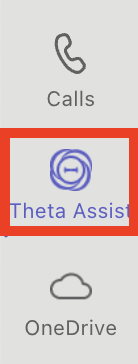
Theta Assist will appear as an app in your Teams users' sidebars, e.g. -
This guide walks you through the steps an admin user will need to take to install the Teams App for your organisation.
Customise and download
- Sign in to Theta Assist using a user that has admin access
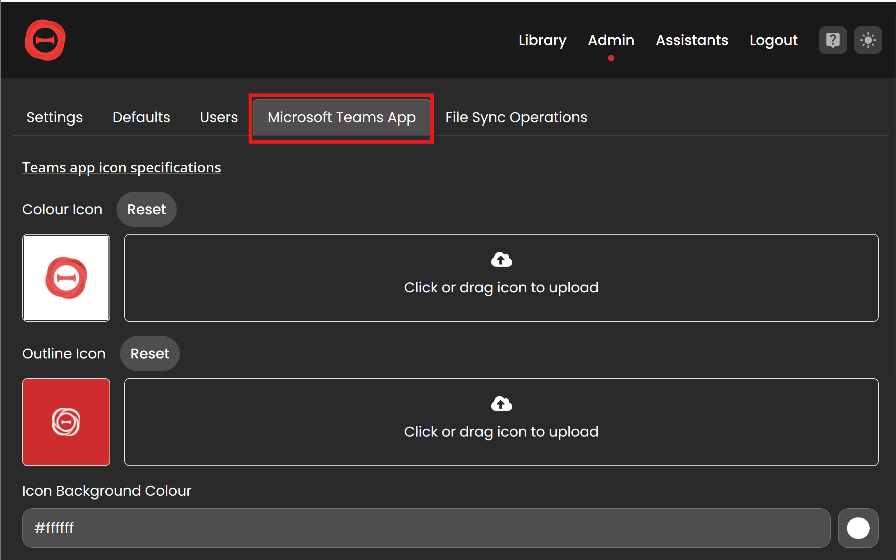
- Navigate to Admin > Microsoft Teams App
-
Make any required changes to the Teams app settings.
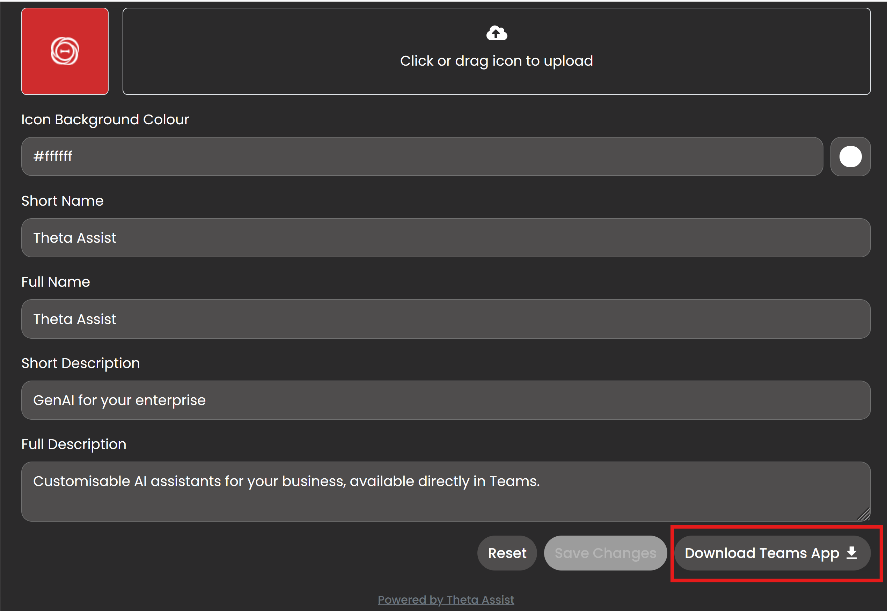
🎨 You can customise the logos, icon background color, app name and descriptions. -
Once you have finished customising, press the Download Teams App button at the bottom of the page. This will download a zip file containing your customised Teams app manifest.
From this point, you have two installation options:
Option 1 – Microsoft 365 Admin Center Integrated Apps
-
Log in to Microsoft 365 Admin Center. You will need to use an account that has permissions to distribute Teams Apps.
-
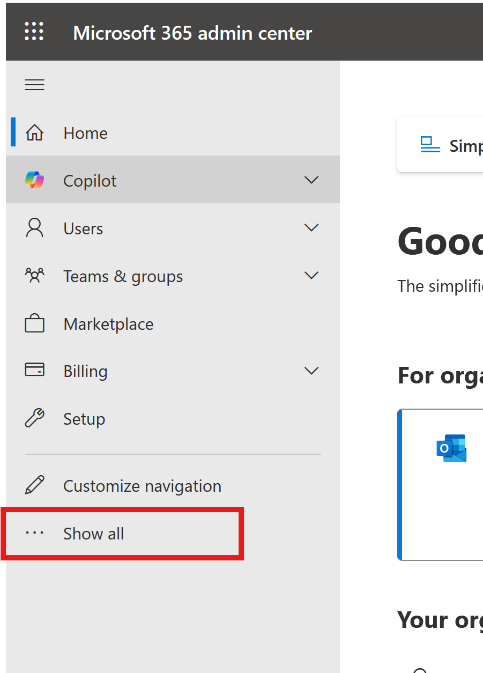
In the left hand menu, click Show All
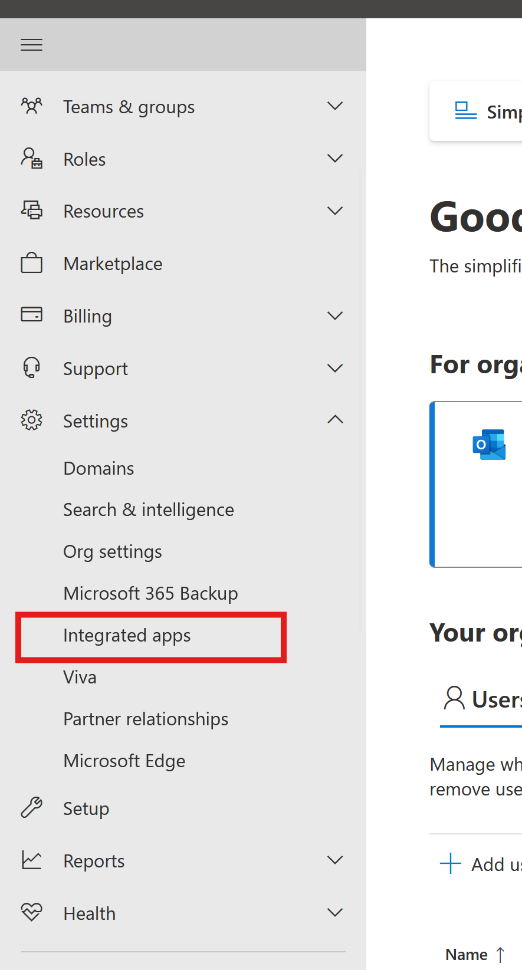
3. Navigate to Settings > Integrated Apps
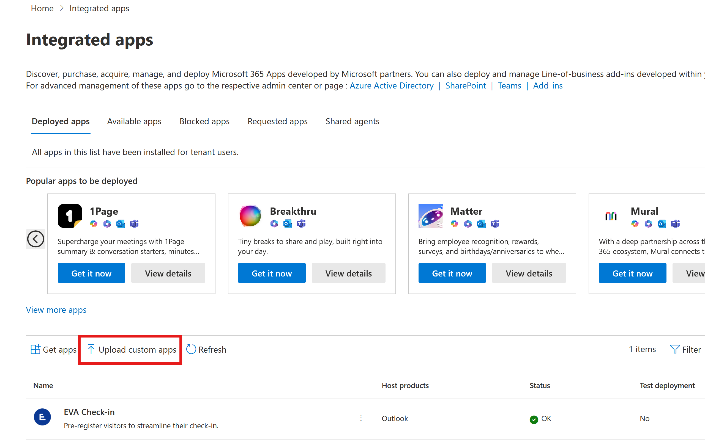
4. Press Upload custom apps
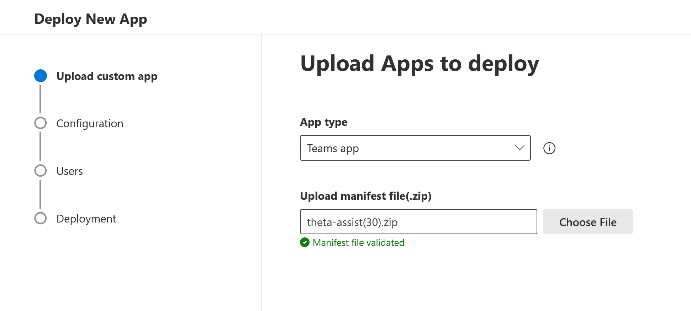
5. Set the App type dropdown to Teams App and press Choose File. In the file dialog, choose the manifest zip file you downloaded from Theta Assist in Step 4 and press Open.
6. Press Next twice.
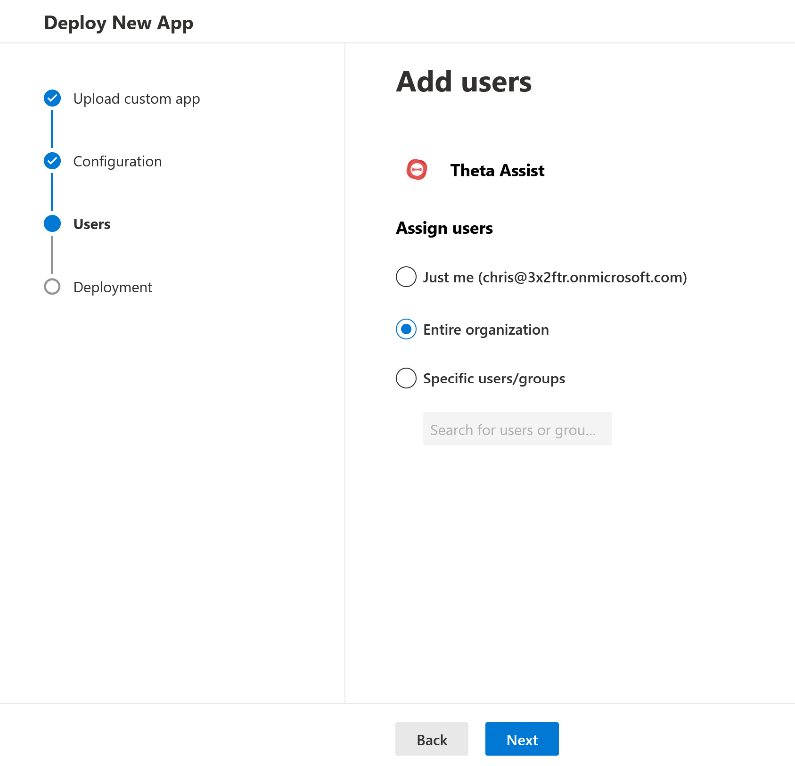
7. Choose who in your organization you would like to deploy the Theta Assist teams app to and press Next.
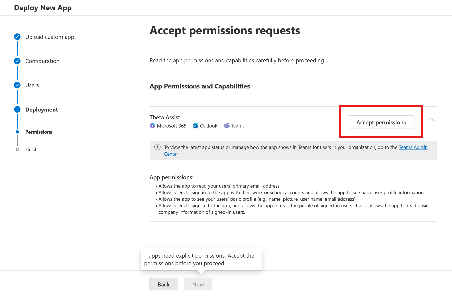
8. Press Accept permissions.
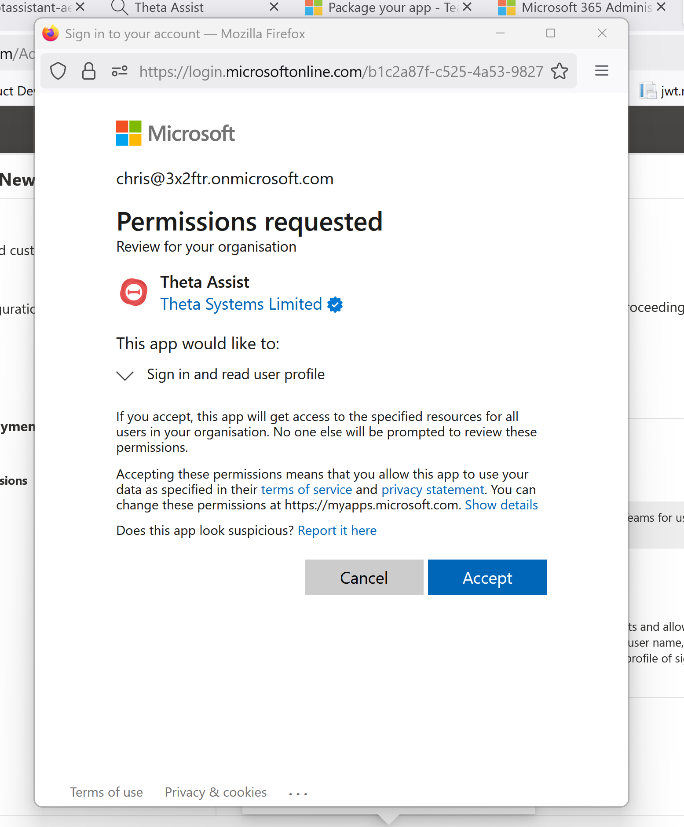
9. Press Accept in the pop-up that opens (you may be prompted to sign in first). Then press Next
10. Once the pop-up closes, press Finish deployment
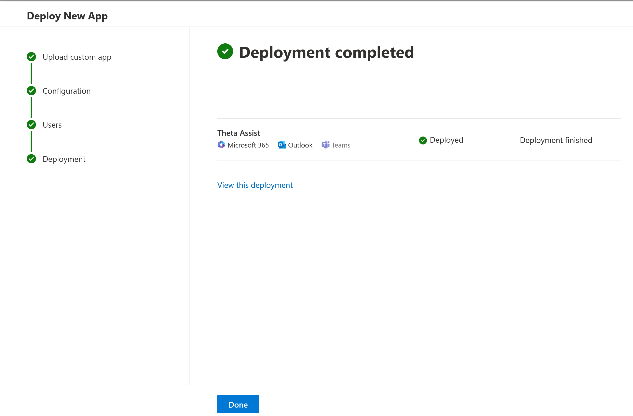
11. Once the deployment has finished, press Done
Option 2 – Teams Admin Center
- Log in to Teams Admin Center. You will need to use an account that has permissions to manage Teams Apps.
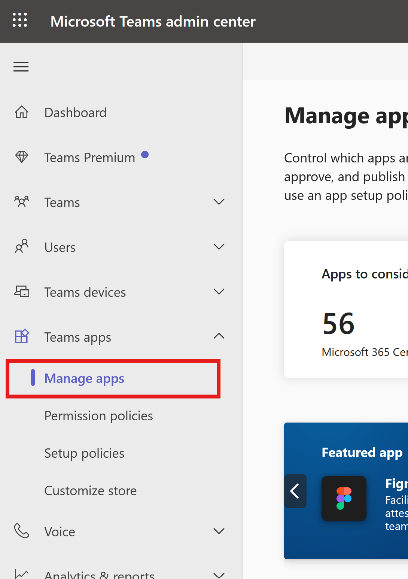
- Navigate to Manage Apps
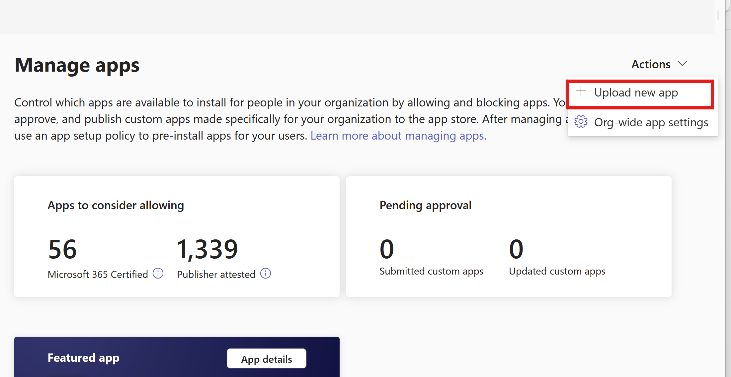
3. Press Actions and then Upload new app
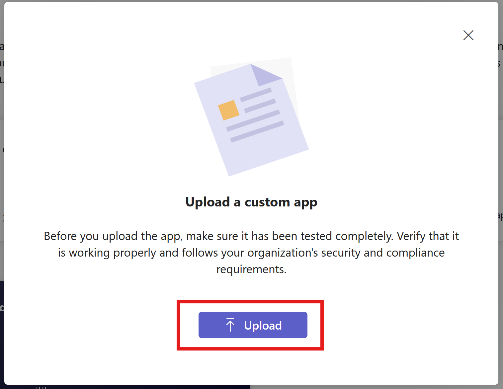
4. Press Upload and then choose the manifest zip file you downloaded in step 4 using the file dialog.
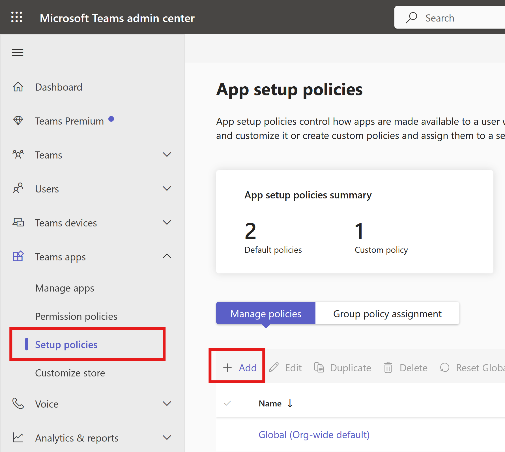
5. Once the app is added, close the pop-up and navigate to Setup policies and press Add
6. Give the policy a name e.g. Theta Assist
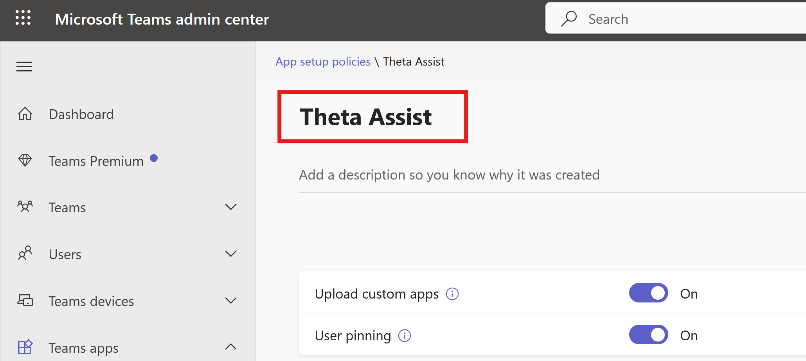
7. Under Installed apps, press Add apps
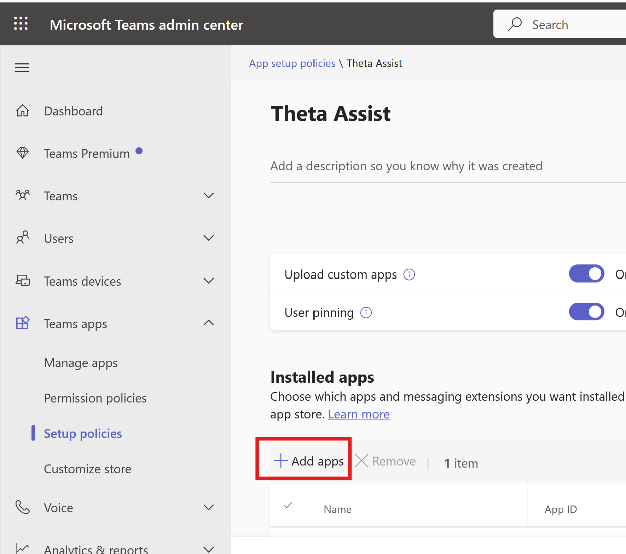
8. In the side bar that appears, search for Theta Assist, select it and press Add
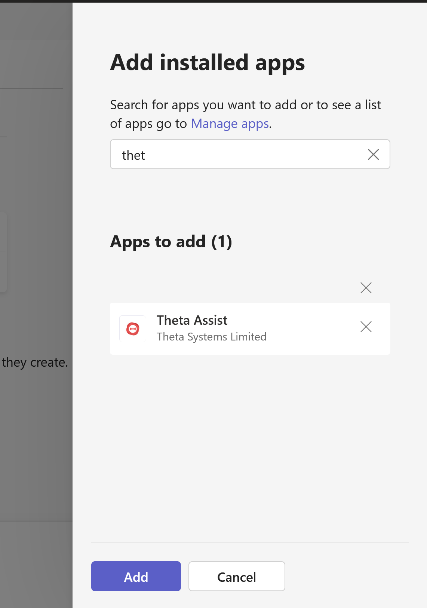
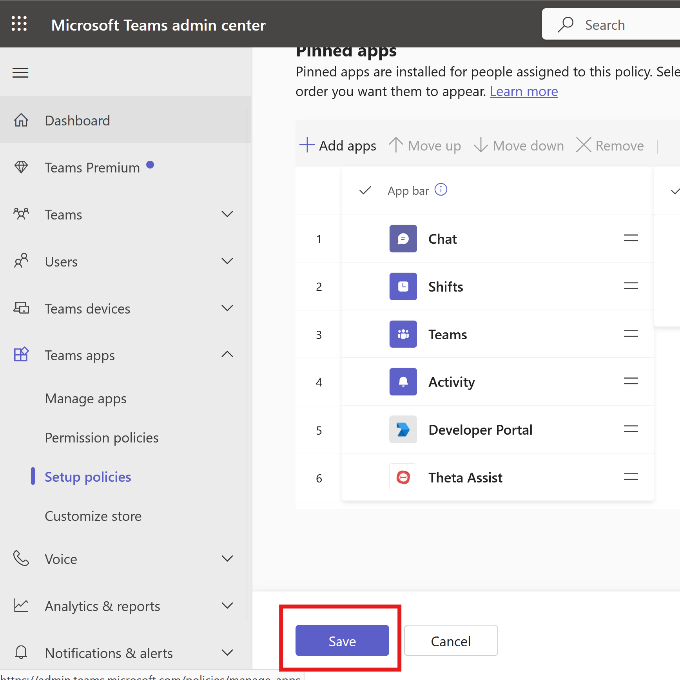
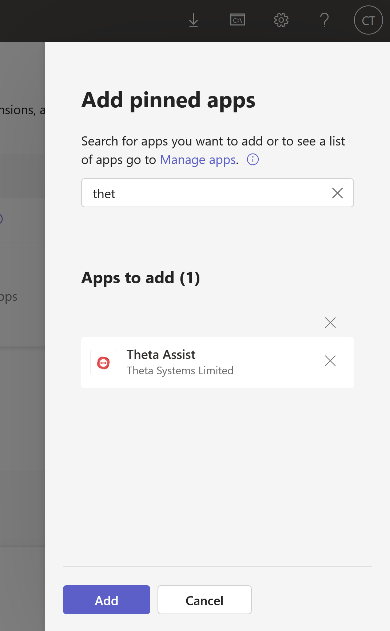
9. Scroll down to Pinned apps and press Add apps
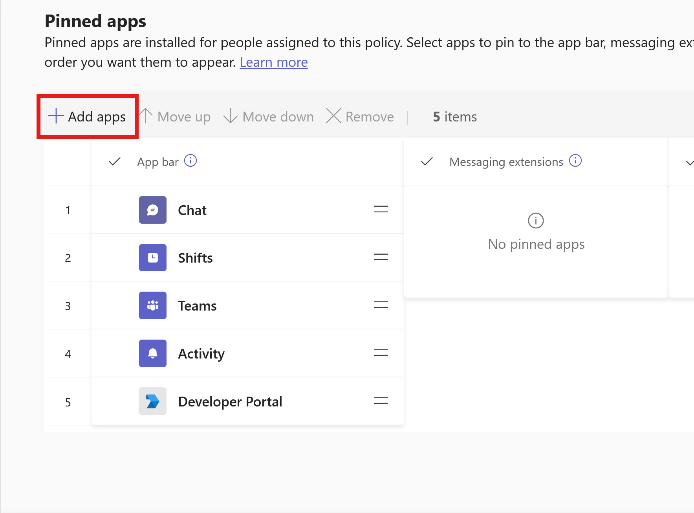
10. In the side bar that appears, search for Theta Assist, select it and press Add
12. Finally press Save at the bottom of the page.