Set up Drive Sync for your organisation | Admin guide
Drive Sync keeps assistant files up to date from SharePoint automatically. Before anyone can use Drive Sync, a system admin needs to complete a one-time Microsoft connection set-up. Read this article for guidance
In this article
Before you start
- You need to be a system admin.
- You need a Microsoft auth configuration already available.
- Your Microsoft app registration must include the required Graph permissions.
- Drive Sync must be enabled for your environment - contact us if you can't see Drive Sync under Admin > Tools
Set up Drive Sync
Open Drive Sync Settings
- Sign in to Theta Assist as a system admin.
- Go to Admin > Tools > Drive Sync.
Select the Microsoft auth configuration
- Open the Microsoft auth configuration dropdown.
- Select the auth configuration Drive Sync should use.
- Click Save changes.
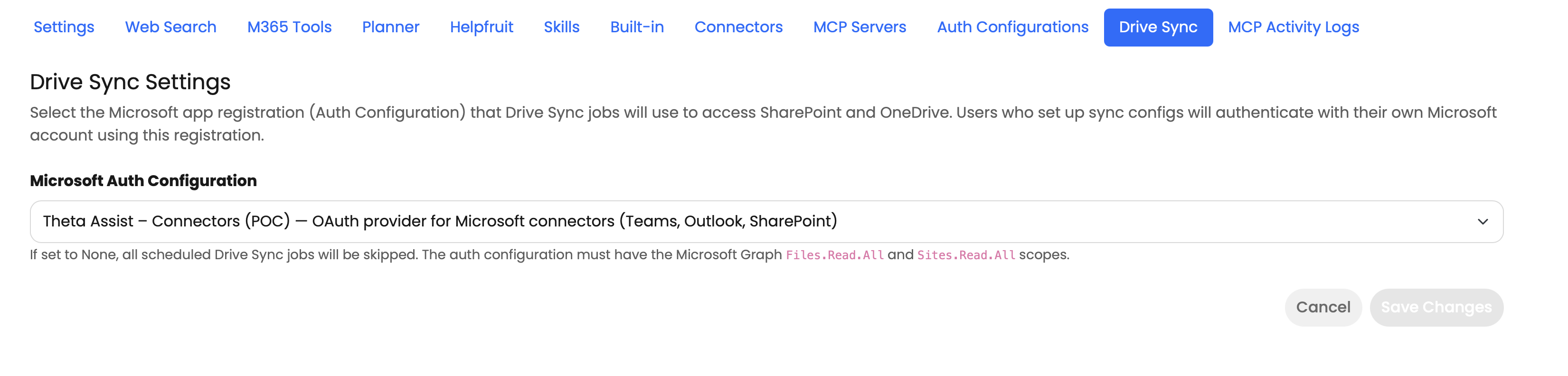
Theta Assist uses this configuration to authenticate with Microsoft 365 when running Drive Sync jobs.
Required Microsoft Graph permissions
The selected app registration must include:
Files.Read.AllSites.Read.All
Without these permissions, Drive Sync cannot read files from SharePoint document libraries.
Disable Drive Sync
- Go to Admin > Tools > Drive Sync Settings.
- Select None (Drive Sync disabled).
- Click Save changes.
While this is selected, scheduled Drive Sync jobs will be skipped, and it won't be possible to set up a new Drive Sync. Assistant editors will see this when they navigate to the Drive Sync Tab of their assistant:

What happens if the auth configuration is removed
If the selected Microsoft auth configuration is deleted:
- Drive Sync automatically returns to a disabled state.
- Scheduled syncs will fail.
- Users may see an error saying Drive Sync auth has not been configured by an admin.
If this happens, select a valid Microsoft auth configuration on the Admin > Tools > Drive Sync page and save your changes again.
Next step for assistant editors
Once the admin set-up is complete, assistant editors can:
- select a SharePoint site and document library
- configure schedules and filters
- run manual syncs
- review sync activity in the Sync Log for their assistant.
You may want to share the article: Sync SharePoint files with assistant files using Drive Sync with them once admin set-up is complete.