Save files to Microsoft 365 with Theta Assist
Use this feature to let Theta Assist save files to a managed Microsoft 365 working folder (also known as AI working folder) in OneDrive or SharePoint. It helps your team save AI-generated files more safely while keeping writes inside an approved folder structure.
In this article
What this feature does
This feature gives Theta Assist a safer way to save files to Microsoft 365.
Instead of saving files anywhere, Theta Assist can only save them to an approved workspace location. If needed, Theta Assist can ask you to choose a folder using a built-in drive picker.
Theta Assist writes to a configured working folder and can create subfolders inside that folder when needed. If the required folder already exists, Theta Assist uses it rather than creating a duplicate.
This helps by:
- keeping saved files in an approved location
- limiting which file types can be written
- making it easier to choose a folder without using technical paths or IDs
Before you start
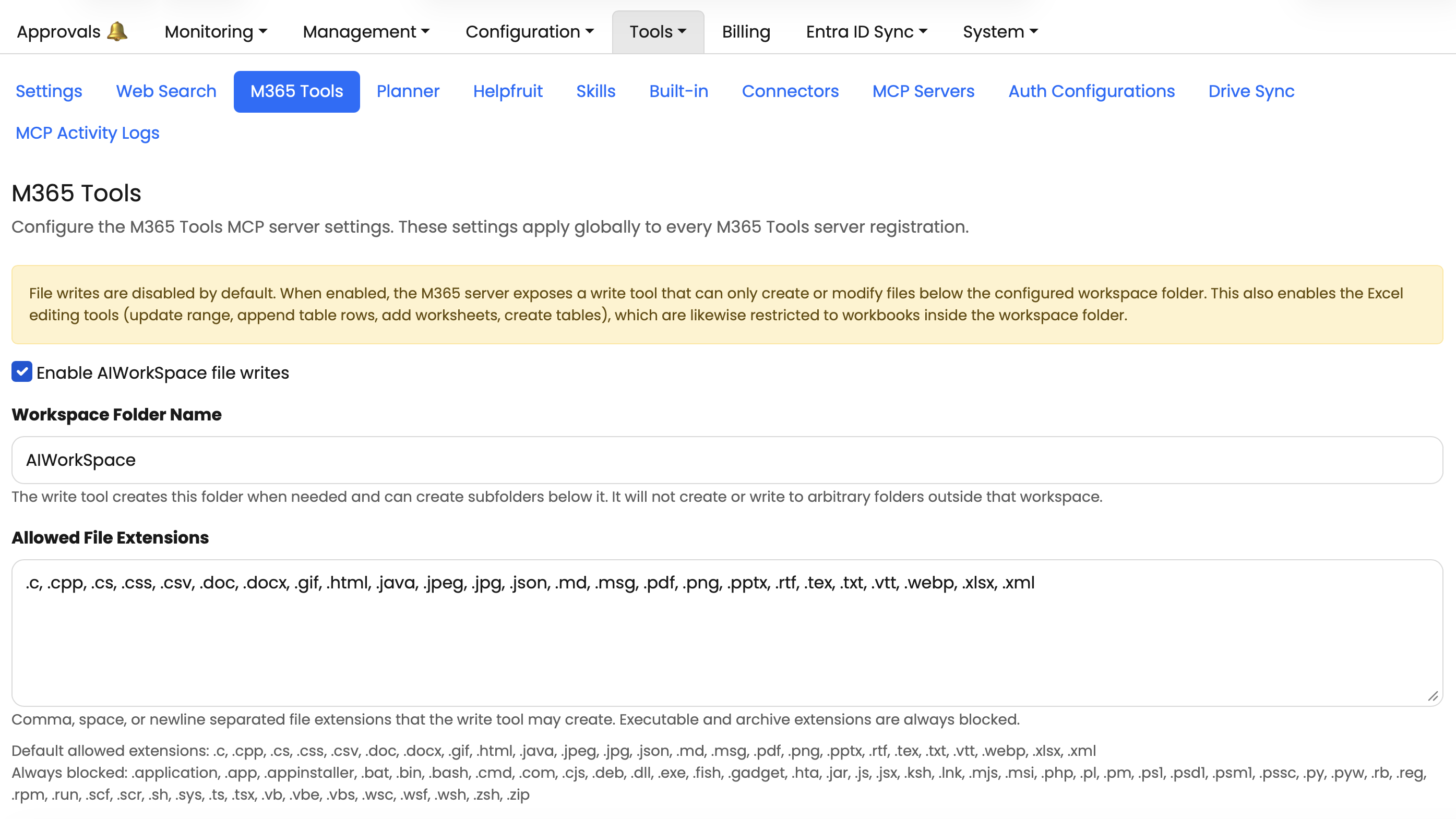
Your administrator manages this feature in Admin > Tools > M365 Tools.
Before you begin, make sure:
- your organisation has Microsoft 365 tools enabled in Theta Assist
- your Microsoft 365 app registration includes the required permission
- your administrator has turned on Microsoft 365 workspace file writing
- your administrator has configured the working folder name and allowed file extensions
- you have access to the relevant OneDrive or SharePoint location
Admin set-up requirements
Your administrator needs to:
- add the required Microsoft 365 app permission
- enable workspace file writing in Admin > Tools > M365 Tools
- configure the working folder name
- configure the allowed file extensions
Your team may also need prompt guidance so Theta Assist saves files to the intended location.
Save a file to Microsoft 365
Ask Theta Assist to save the file
- In chat, ask Theta Assist to create or save a file to Microsoft 365.
- Review the file type and destination Theta Assist suggests.
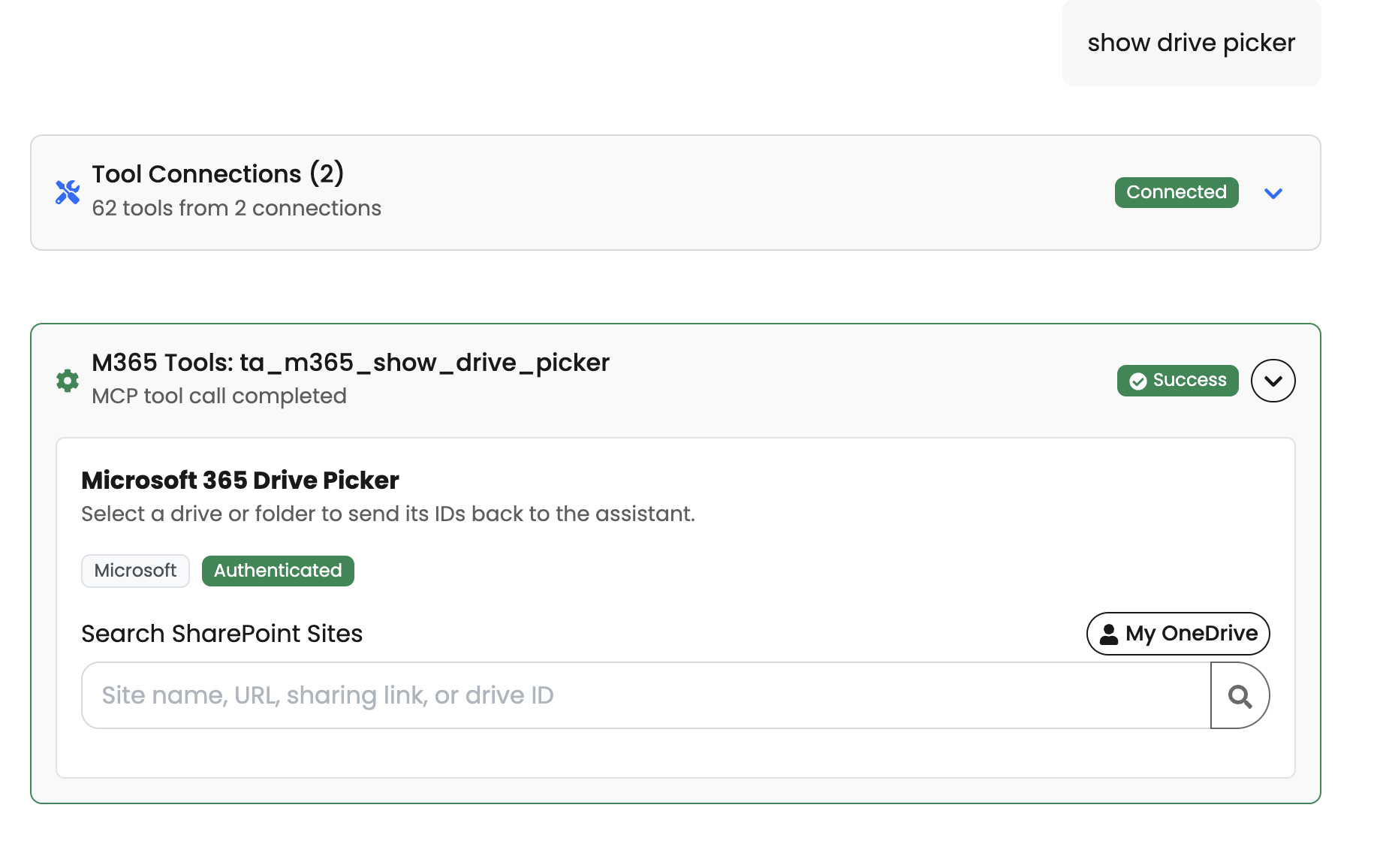
- If Theta Assist needs you to choose a location, open the Microsoft 365 drive picker when prompted.
- Select your folder and choose Use selection.
- Theta Assist will continue using the folder you selected.
For example, you might ask Theta Assist to:
- save a summary as a Word document
- write a CSV file to a SharePoint folder
- create a report in your OneDrive workspace
Choose a folder with the drive picker
The drive picker lets you choose a location without manually entering folder paths.
You can also prompt Theta Assist to use the drive picker if you want to choose a specific OneDrive or SharePoint location - e.g. say "show drive picker"
Browse OneDrive
- Open the drive picker when prompted.
- Choose My OneDrive.
- Browse to the folder you want.
- Select Use selection.
Browse SharePoint
- Open the drive picker when prompted.
- Search for the SharePoint site by name, URL, sharing link, or drive ID.
- Open the correct document library and folder.
- Select Use selection.
Continue in chat
Once you have selected a location, Theta Assist uses that location to complete the file-writing step.
How folder creation works
Theta Assist writes inside the configured working folder. It can create subfolders within that workspace when needed.
This means:
- it does not write directly to the selected root folder
- it can create a subfolder for the task if needed
- it will not create a duplicate folder if the folder already exists
For example, if you choose a OneDrive folder, Theta Assist may create and use a subfolder within the approved working area rather than writing directly to the top level.
What file types are allowed
Theta Assist can only write approved file types.
Your administrator controls the allowed file extensions. This means some file types may be blocked even if Theta Assist can generate them.
Riskier file types are excluded. This includes executable or script-style formats.
If a file type is not allowed, ask your administrator whether that extension should be enabled.
What happens in background jobs
The drive picker only works when a person is present in the chat.
It is not available in:
- scheduled jobs
- background jobs
- batch runs
- unattended agent workflows
This is because those workflows cannot pause and wait for someone to choose a folder.
If you need a file saved from a non-interactive workflow, specify the location it should save to as part of the instruction.
Limitations when updating existing files
Creating a new file is the simplest use case.
Updating an existing Word file is more complex. Theta Assist may need to:
- fetch the existing file
- create a new version based on that file
- preserve formatting and styles
- replace or overwrite the earlier version if appropriate
If you need reliable updates to an existing Word document, test the workflow carefully first.
Troubleshooting
I cannot see the drive picker
This may happen if Microsoft 365 tools are not enabled, workspace file writing is turned off, you are in a background or scheduled run, or your session does not have the required Microsoft 365 access.
Try again in a normal interactive chat. If the issue continues, contact your administrator.
Theta Assist says it cannot write this file type
This usually means the file extension is not on the allowed list.
- Ask Theta Assist to use a different file type.
- Ask your administrator to review the allowed extensions.
I can browse, but I cannot save to the folder
You may not have permission to write to that OneDrive or SharePoint location.
Check that:
- you have access to the site or folder
- the selected location is the correct one
- your Microsoft 365 access is connected correctly
Theta Assist saved the file in the wrong place
Try being more specific in your prompt. For example:
- tell Theta Assist to use the workspace write tool
- ask it to use the drive picker
- name the OneDrive or SharePoint location you want
If needed, select the location yourself using the drive picker.