Certified assistants
Certified assistants help people identify assistants that have been reviewed and approved. This makes it easier to choose a trusted assistant for work tasks.
Quick links
What certified assistants are
Assistant authors can submit an assistant for review. If the assistant is approved, it is badged as certified so people in your organisation can easily identify reliable, reviewed assistants.
Coming soon: System admins can also directly approve an assistant.
How to tell if an assistant is certified
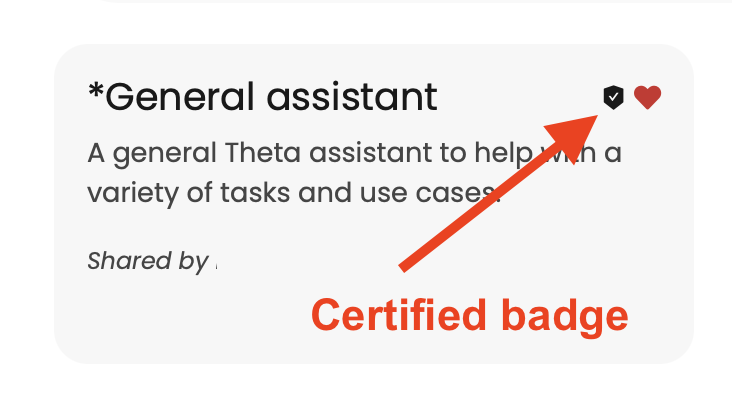
You can identify a certified assistant in 2 places:
- In the Library view
Look for the badge in the Certified column. - On the assistant card
If the certified assistant is shown on your home screen, it will display a certified badge
Request certification for an assistant
Before you submit
Before submitting an assistant for certification, make sure you:
- can open and edit the assistant
- know the assistant’s purpose and intended use cases
- can describe how the assistant has been tested
- are ready to provide review notes in the Certification tab
How to request certification
- Open the assistant you want reviewed, and click Edit Assistant
- Select the Certification tab.
- Review the current status.
- Add notes about the assistant's purpose, capabilities, intended use cases, and how it has been tested.
- Select Submit request.
- Let your system admin know, to expedite review
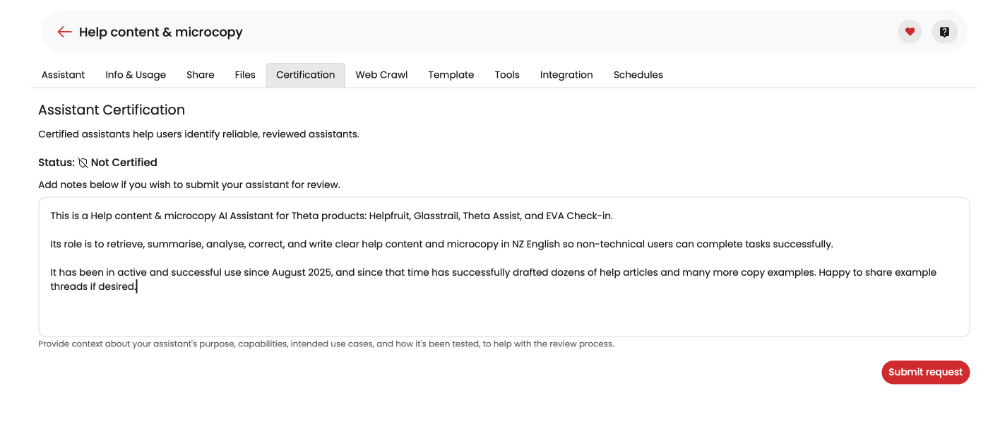
Clear review notes help reviewers assess the assistant more quickly.
How to review a certification request
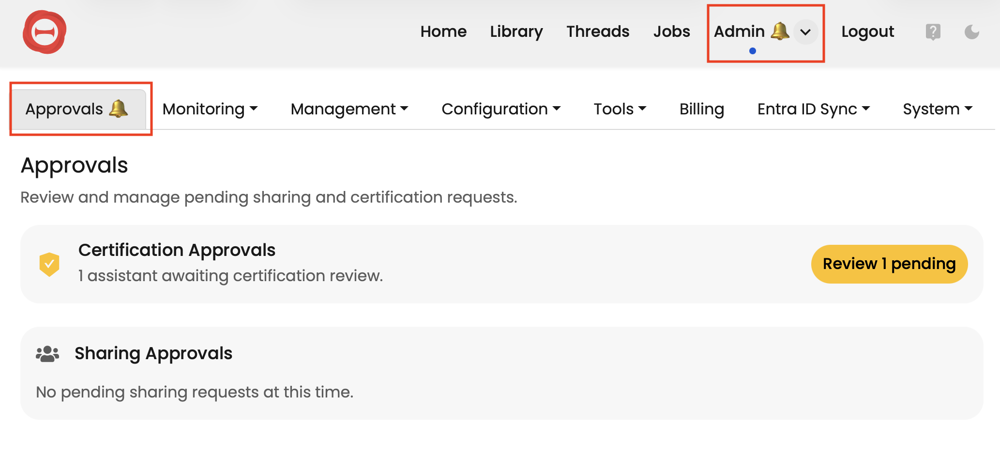
- Admins can review certification requests from Admin > Approvals.
- The bell icon indicates there are approvals pending review
- The Certification approvals section shows how many assistants are waiting for review and links to a filtered assistants list.
Alternatively,
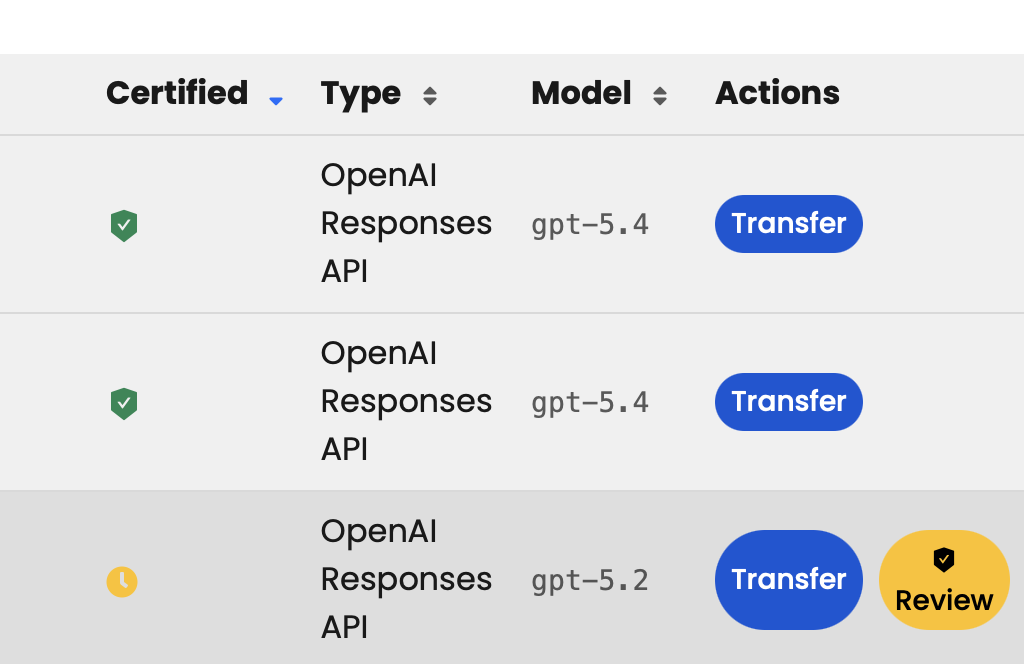
- Go to Admin > Management > Assistants
- Find the assistant in the list - sort by "certified" to see any pending requests near the top of your list
Certification steps
- Click Review
- Check the request notes and Notes History
- Add review notes
- Select Approve, Deny, or Cancel request
- (Optional) Let the submitter know the outcome of their request
Coming soon: direct admin certification
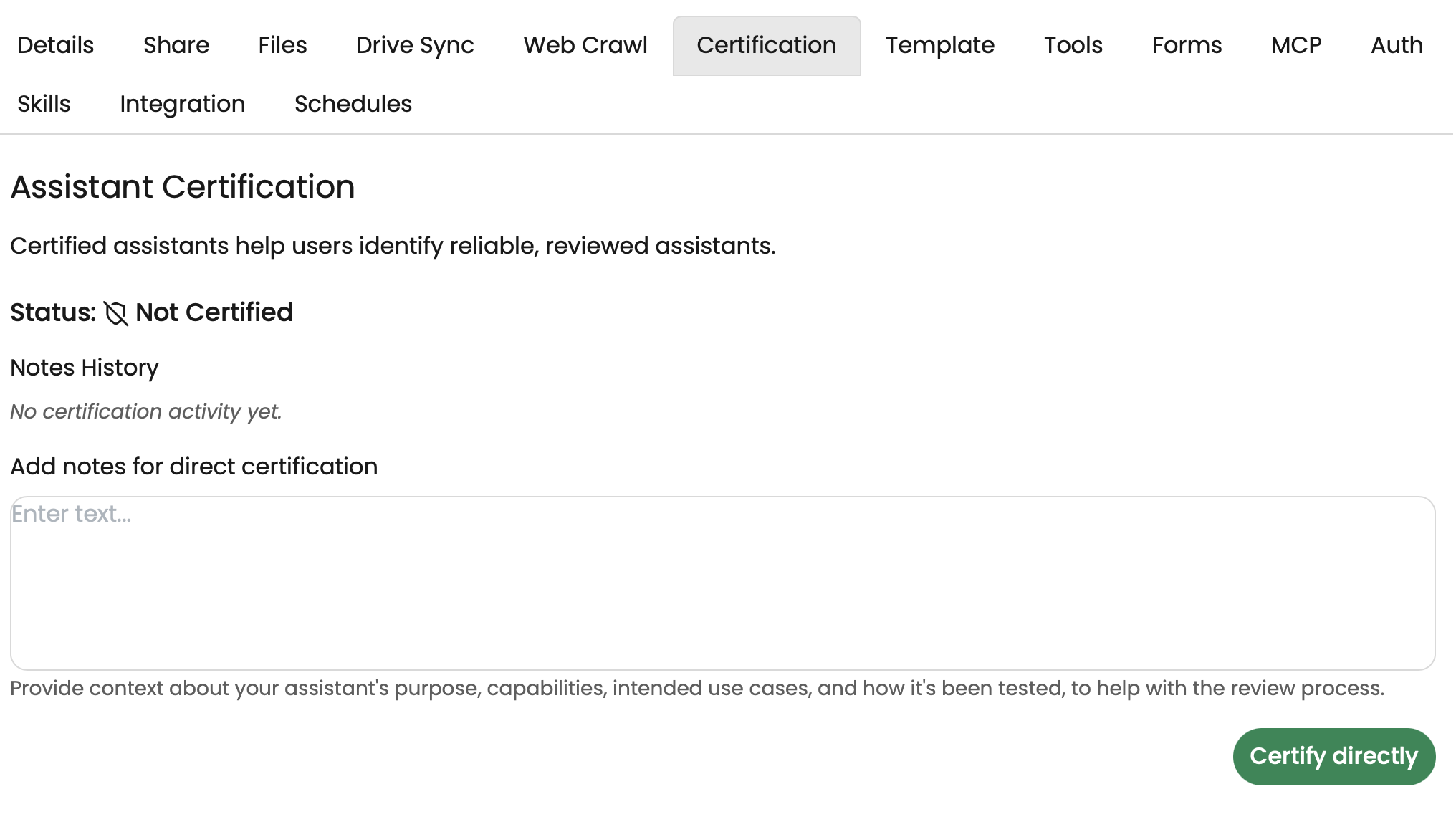
System admins can directly certify any assistant. To do this:
- Open the assistant details. You can either:
- In the assistant, click the info or edit button above the threads menu; or
- Open the assistant from Admin > Management > Assistants
- Navigate to the certification tab
- Add any certification notes (e.g. the reason you have certified this assistant)
- Click Certify directly
Certification statuses
An assistant can move between these statuses:
- Not Certified – not yet approved
- Pending – waiting for admin review
- Certified – approved by an admin
Admins can also:
- approve a pending request
- deny or cancel a pending request
- revoke certification
- certify directly from Not Certified (coming soon)